 Inklatch
Steps
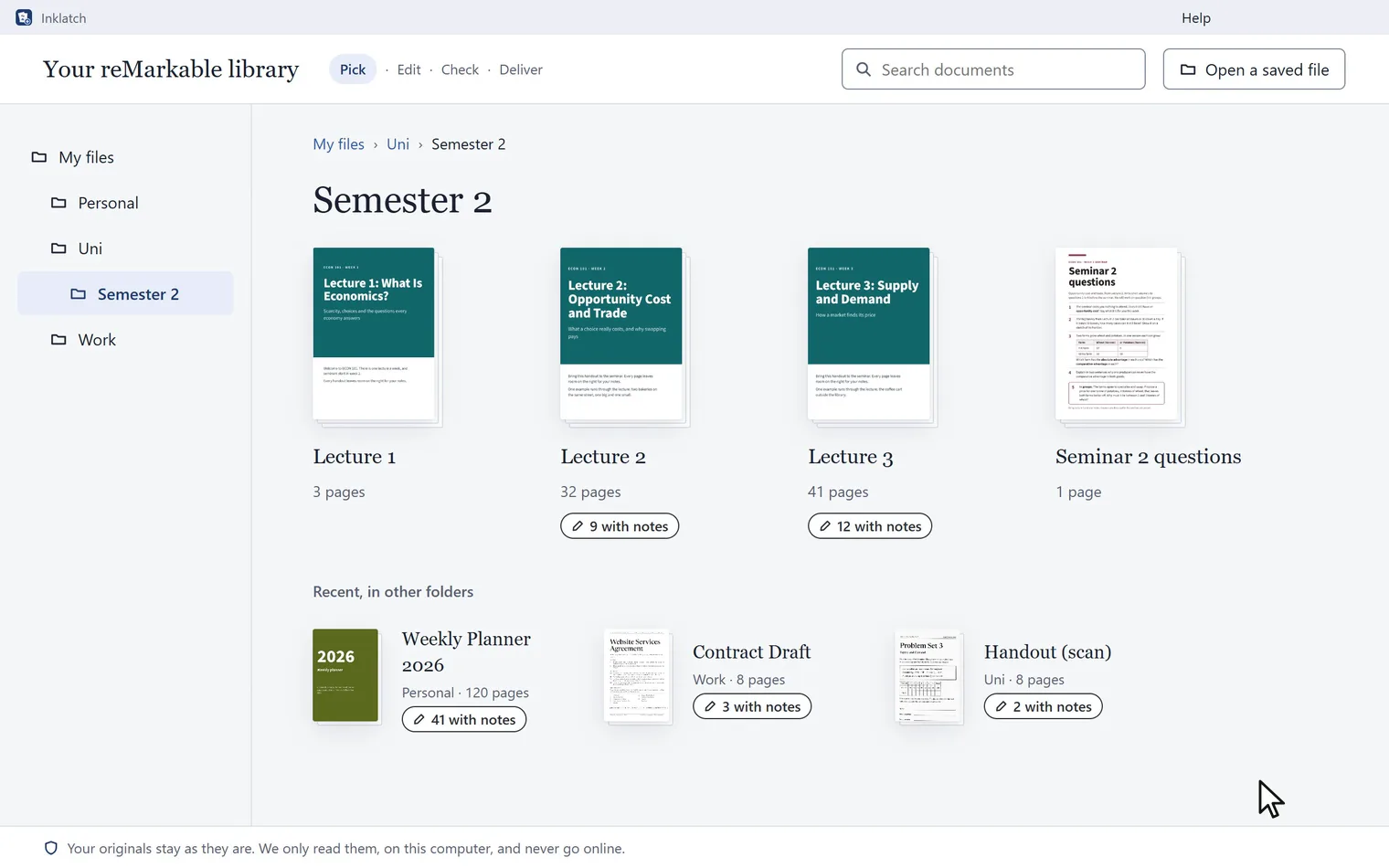
- Let the reMarkable desktop app finish syncing, so your newest notes come along. Inklatch doesn't remind you when you drop a PDF.
- In your Inklatch library, drag the new PDF from File Explorer (Finder on a Mac) onto your document's card. For example, drag Lecture 3 v2.pdf onto Lecture 3.A menu that asks "What should it do?"
- Click New version.The Check screen, with a summary of your pages on the left.
- Read the summary's lines from the top. The table below says what each one means.
- Click a page in a line to open it on the right. For the new, gone and same lines, click Show first.Your page before and after, side by side, with your notes.
- Click Make my copy when every page looks right. Nothing is saved until then.
Some pages may need a choice from you: a wrong match, a page with notes that's gone, or a page that changed size. Each has a short section below.
What the lines mean
| Line | What it means | In your copy |
|---|---|---|
| "2 pages changed" | Found, but different. Tag: "Text changed", "Size changed" or "Old page kept" | Your notes on the new page, in the same place. With "Old page kept", your old page and its notes |
| "1 page kept because of your notes" | Gone from the new PDF, but has your notes | Your old page and its notes, in its place |
| "0 new pages" | Match none of your pages. Tag: "New" | Where the new PDF has them, with no notes yet |
| "1 page gone from the new PDF" | Gone, with no notes. Tag: "Gone" | Left out |
| "38 pages the same" | Same words and same size | Your notes stay exactly where they are |
- On a "Text changed" page, a box on each change shows where, marked "Text changed here", when Inklatch can find the spot.
- "Size changed" means the page is wider, narrower, taller or shorter.
- The gone line shows only when there is such a page.
- Your note pages count as the same, tagged "Note page". These are pages with no PDF behind them.
What Check compares
Read "38 pages the same" with care. On a page with text, Check compares the words and the page size. It doesn't compare how the page looks. So if a picture, chart, stamp or layout changed but the words didn't, the page counts as the same. A change only in capitals or spacing counts as the same too.
You can open any page before and after, not only the changed ones. Click Show on "38 pages the same", then click the page. If you check contracts or forms, open every page that matters to you.
Scanned pages
Some pages have fewer than 20 characters of text, such as a scan or a page that is only a picture. Check compares these by a small grey picture of the page, not by their words.
- Every page of a new scan reads "Text changed". The smallest difference in the picture counts as a change.
- Pages that look almost alike, such as a planner's, are told apart by their order in the PDF.
- A page of text and a scanned page never pair by themselves. Pair them by hand, as below.
- Look at every pair in a scanned PDF before you make your copy.
Fix a wrong match
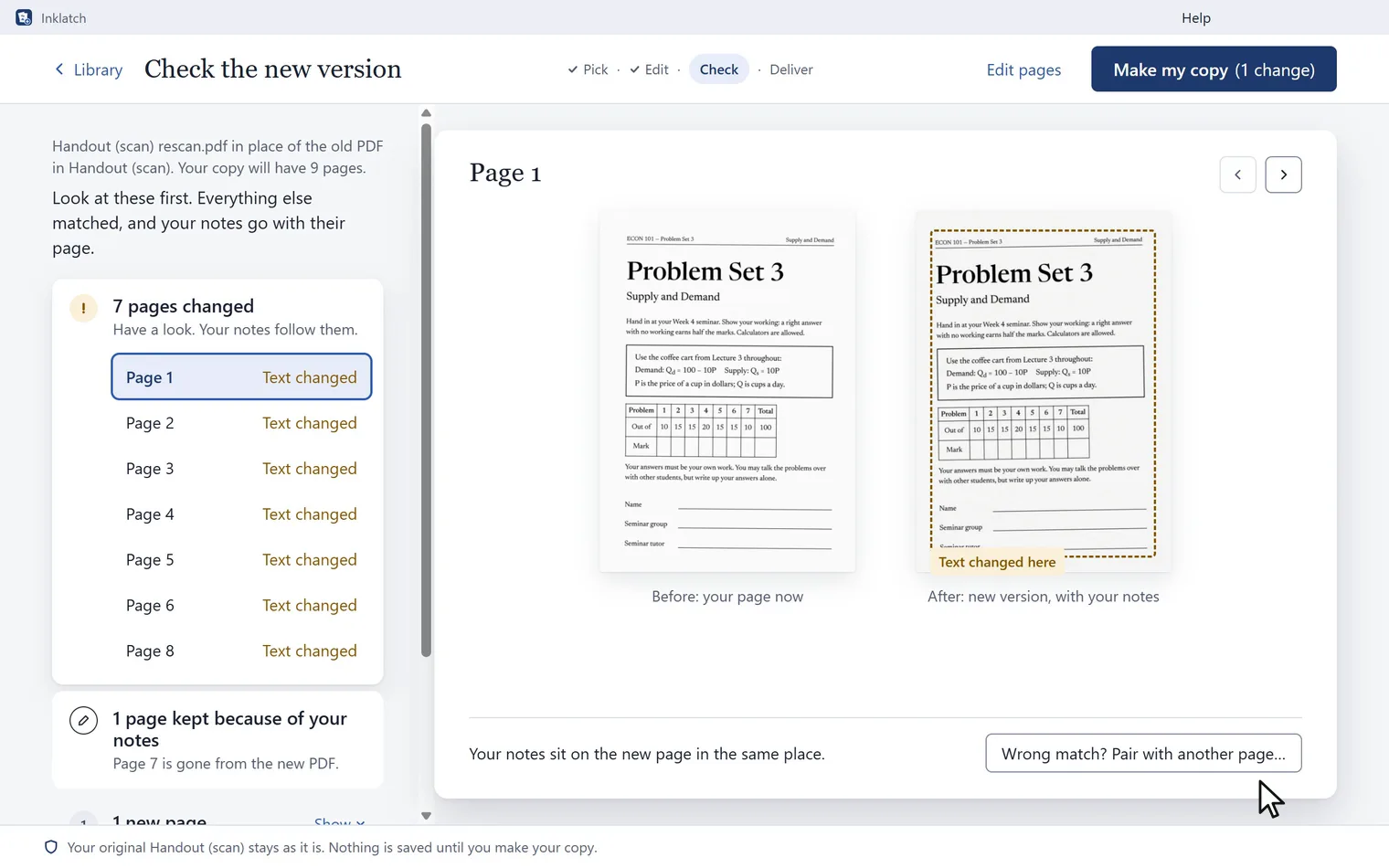
Inklatch pairs your pages with the new PDF's pages in order. So a page that moved in the new PDF can show as kept or gone, with its new place as a new page. Or your notes may show on the wrong page. Pair the page by hand.
- Open the page, and click Wrong match? Pair with another page… under it. It's on every page except a note page or a new page."Pair page 14", with your page and every page of the new PDF. Your notes move with the page you pick.
- Click the page that matches. The page it's paired with now says "Matched now". The closest match says "Best fit" and is picked to start.
- Click Pair with page 15, or double-click the page. The button shows the number of the page you picked.Your page before and after, now on the page you picked.
If the page you picked was paired with another of your pages, that other page is now unpaired. It's kept if it has notes, or gone if it doesn't. There's no choice for no match. To go back without pairing, click Cancel.
A page with notes is gone from the new PDF
The screen says: "Page 12 is gone from the new PDF. It has your notes, so we kept the old page in its place."
- Click "1 page kept because of your notes" in the summary.Your page, tagged "Kept in your copy", with Remove it and Keep it.
- To keep it, click Keep it. Nothing changes, because the page is already kept. Inklatch moves on to the next page to look at.
- To take it out of your copy, click Remove it."Page 12 and its notes won't be in your copy." with Undo.
- Changed your mind? Click Undo. It brings the page back with its notes.
After Remove it, the summary line reads "1 page removed, with its notes".
A page changed size
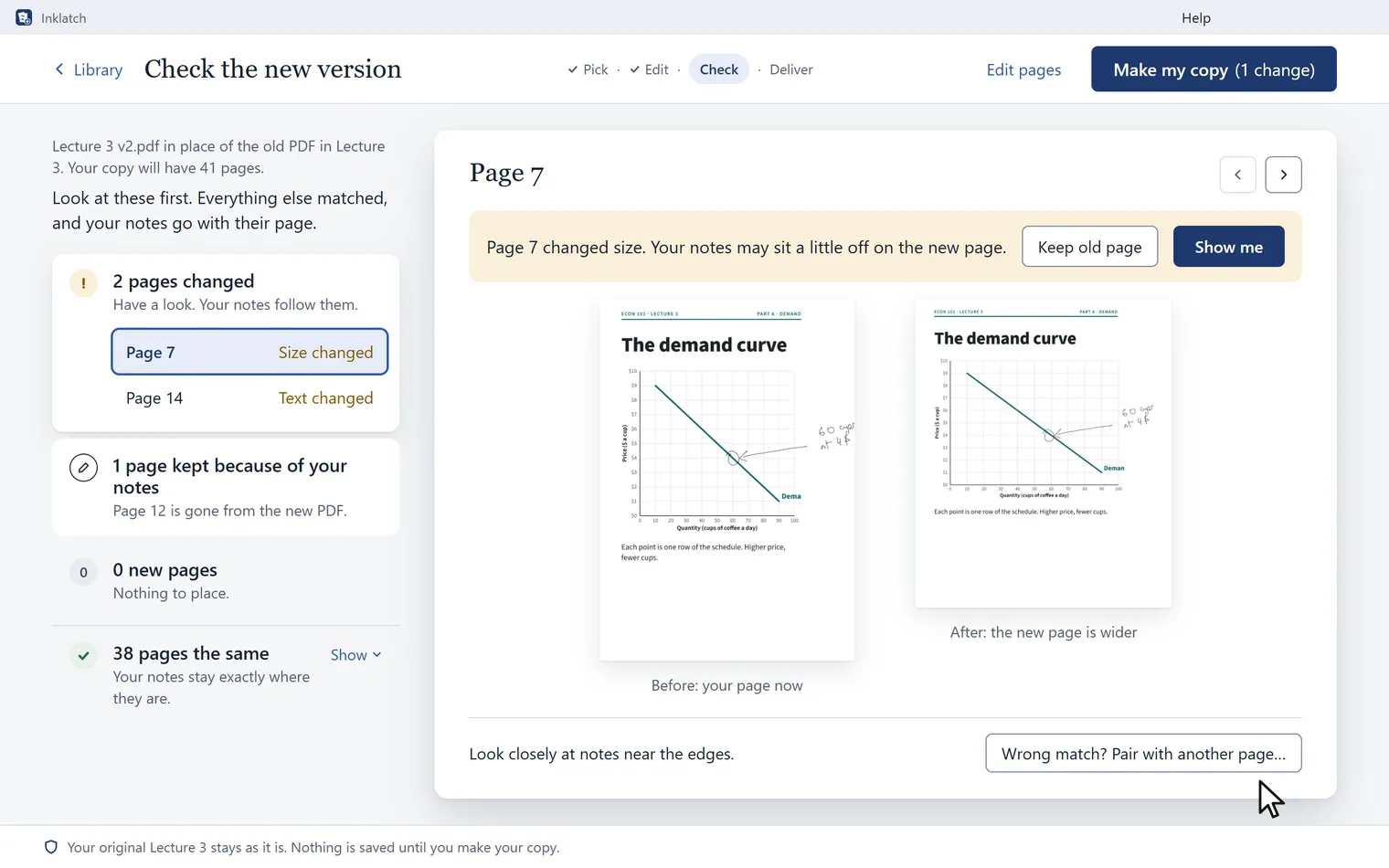
Inklatch never moves or scales your notes. They keep their place on the page. So when the new page is wider, narrower, taller or shorter, your notes can sit a little off. This shows most near the edges.
- Open the page tagged "Size changed"."Page 7 changed size. Your notes may sit a little off on the new page." with Keep old page and Show me.
- Click Show me to see the page large, before and after.
- Click Close.
- If your notes sit wrong on the new page, click Keep old page. Otherwise, leave it, and your notes go on the new page."Page 7 keeps its old page in your copy, so your notes stay as they are."
- To use the new page after all, click Use new page.
With Keep old page, the tag reads "Old page kept". Your old page stays in your copy, notes and all.
The message shows on every page that changed size, even one with no notes. Only a page that changed size has Keep old page. On a page whose text changed, your notes always go on the new page.
Without a mouse
- In your library, move to your document's card with Tab and the arrow keys.
- Press Shift+F10 or the Menu key. On a Mac, press Shift+F10, with fn too if your keyboard needs it.The same menu, with "What should it do?"
- Press Tab to reach New version, and press Enter.A window to choose the file: "New version of Lecture 3".
- Choose the new PDF and press Enter.
- On the Check screen, press Tab to move through the lines, pages and buttons. Press Enter to press one.
- In "Pair page 14": ← → one page, ↑ ↓ one row, Enter pairs.
- Esc closes "Pair page 14" without pairing. It also closes the large view from Show me, and the library's menu.
- Ctrl+Z (Cmd+Z on a Mac) takes back your last choice on the Check screen.
- Ctrl+Enter (Cmd+Enter on a Mac) makes your copy.
Other ways
- With the document open, click New version in the toolbar and choose the new PDF.
- The Check screen opens on the first page to look at. The arrows above the page step through the changed and kept pages.
- To make more changes after the new version, click Edit pages. Your changes starts with "Use the new version". Click New version again to go back to the Check screen.
- After Edit pages, Ctrl+Z takes back your later changes one at a time. Then it takes back the whole new version.
- To start over, click Library, then Discard changes. Your original Lecture 3 stays as it is.
If something else happens
- New version is off
- "A new version comes first. Undo your changes to use one."A new version replaces the whole PDF, so it has to be your first change. Undo each line in Your changes, then click New version. Make your other changes after it, with Edit pages. The same words show if you made a change while the pages were being compared. The new version isn't added then. Undo that change and try again.
- Almost nothing matches
- "Only 2 of 40 pages match. Is Recipes.pdf really a new version of Lecture 3?"Few of your pages were found in this PDF, so it may be the wrong file. Click Choose another PDF and choose the right one. This works only while the new version is your only change. If you made changes after it with Edit pages, undo them first. If it is the right file, pair the pages that matter by hand.
- A message asks for a password
- "Lecture 3 v2.pdf is locked. Type its password to use it as the new version."Type the PDF's password and click Unlock. Inklatch uses it once and doesn't keep it. If you see "That password didn't work.", type it again.
- A message says one of your later changes no longer fits
- A choice on the Check screen would break a change you made after the new version. For example, a change on a page you just removed. Undo that later change first, then make the choice again.
- Your notes are on the wrong page
- Pair the page again before you make your copy, as in Fix a wrong match above.
- The PDF won't open
- A message such as "PDFium could not open the PDF (error 3)" means the file is damaged or isn't really a PDF. Open it in another app, save it as a PDF again, and try that file.
- "Lecture 3 v2.pdf has no pages."
- The file is empty. Choose another PDF.
Why a new PDF doesn't bring your notes along on its own, and other ways to handle it: Update a PDF on reMarkable without losing your notes.
Next: Make my copy, to build your new copy and test it.