Steps
reMarkable appsigned in, synced
Microsoft Storefree download
 Open Inklatchit finds your library by itself
Your librarypictured in step 5
- Install the reMarkable desktop app and sign in once.
- Let it sync, so your newest documents and notes are on the computer.
- Check that your computer can run Inklatch. It's for 64-bit Windows on an x64 computer, with Windows 10 version 1809 or later, or Windows 11.
- Get Inklatch from the Microsoft Store. The download is free. The Windows version comes only from the Store, not from the website.
- Open Inklatch."Your reMarkable library", with your folders on the left and your documents in the middle.
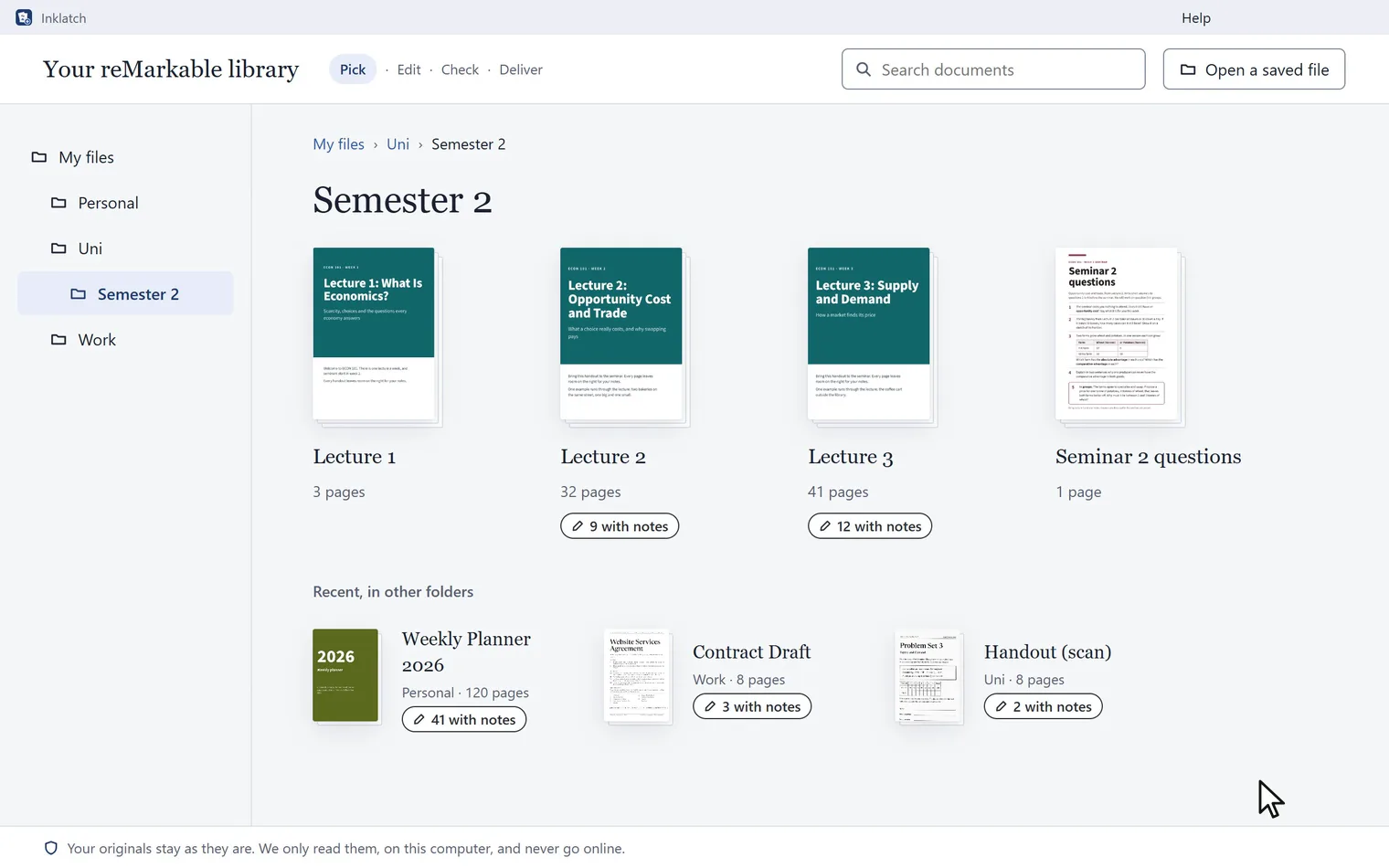 1your folders2your documents
"The Microsoft Store keeps Inklatch up to date." There's no menu bar on Windows. Help sits in the title bar and opens Report a problem. For what Inklatch costs, see pricing.
If something else happens
- "We can't find the reMarkable app."
- "Install it and sign in once, or open a reMarkable file you saved."Inklatch found no reMarkable library on the computer. This also shows when the desktop app hasn't synced anything yet. Install it, sign in and let it sync. Then close Inklatch and open it again. Or click Open a file to open a saved reMarkable file. See Find your documents.
- Open reMarkable app does nothing
- Inklatch looks for the desktop app in its usual place, the reMarkable folder in Program Files. If it's somewhere else, start the reMarkable app yourself and let it sync. Then open your document.
- Opening Inklatch again doesn't give a second window
- Inklatch runs once. Opening it again brings the open window to the front.
Next: Find your documents, to open the document you want to change.