 Inklatch
Steps
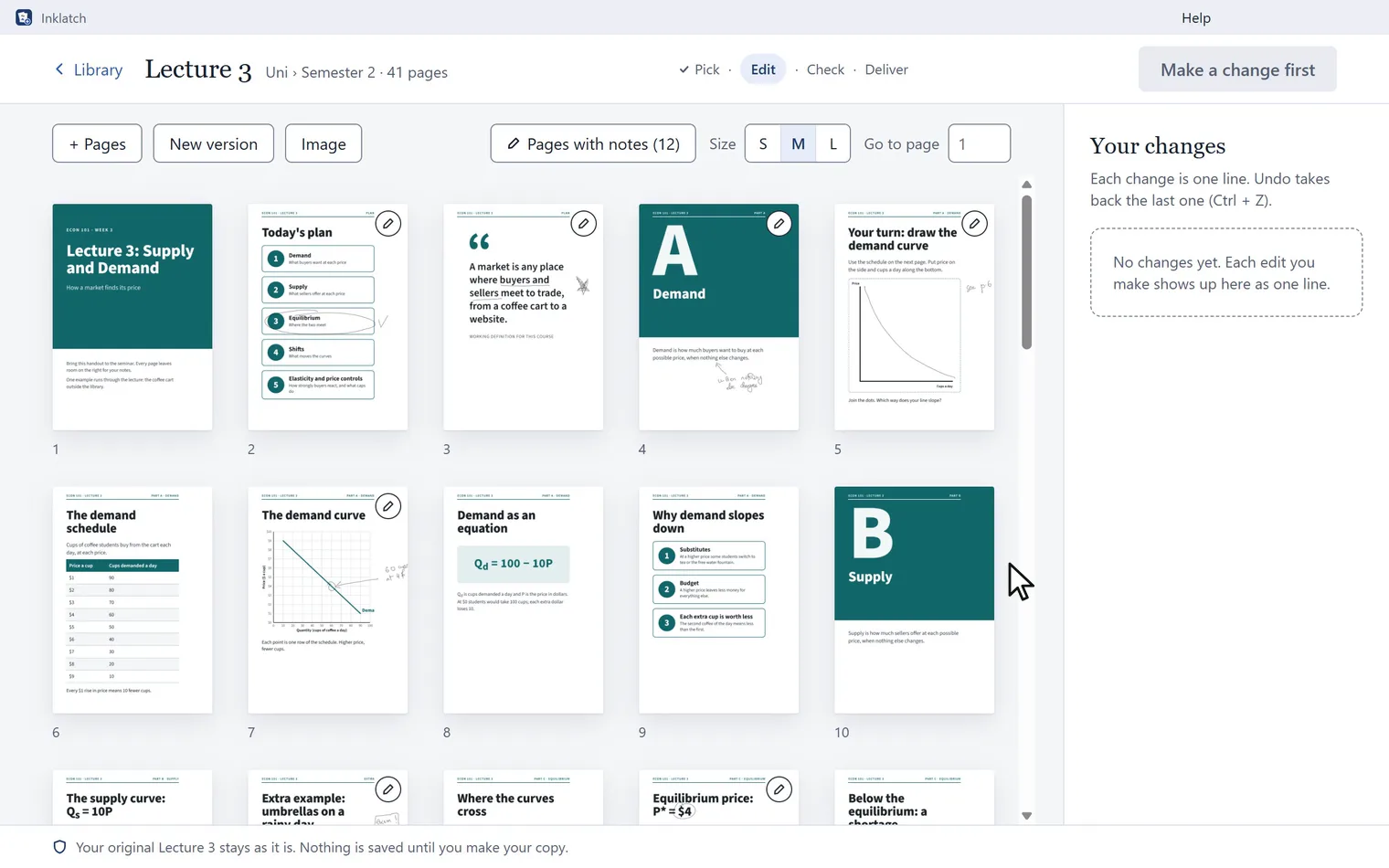
- In Inklatch, open your document, for example Lecture 3.
- Click the page the image goes on, for example page 5."Page 5 selected" above the pages.
- Click Image, and choose a PNG or JPEG picture, for example Demand curve sketch.png.The page opens large, with your picture in the middle, half the page wide.
- Drag the picture to where you want it. It stops at the edges of the page.
- Drag a corner or a side to resize it. The picture keeps its shape: nothing stretches it.Your notes drawn on top of the picture, as they will be in your copy.
- Click Back to all pages.Your pages again, with page 5 tagged Image.
- Add more images the same way, or go on to Make my copy when you're done. Nothing is saved until then.
A PNG's see-through parts stay see-through.
Without a mouse
- Press Tab until you reach the pages. Go to the page with the arrow keys, and press Space to select it.
- Press Tab or Shift+Tab until you reach Image, press Enter, and choose the picture.The page opens large, and the picture has the keyboard.
- Move and resize the picture with the keys below.
- Press Esc to go back to all pages.
- Arrow keys move it 10 points. Hold Ctrl (Cmd on a Mac) to move it 1 point.
- Shift and an arrow key resize it by 10 points. Ctrl+Shift (Cmd+Shift on a Mac) resize it by 1 point.
- → and ↑ make it bigger, ← and ↓ smaller. Its top-left corner stays put.
- After you click a button beside the page, the keyboard stays on that button. Click the picture, or press Tab until you reach it, to move it with the keys again.
Other ways
- Drag a PNG or JPEG from File Explorer (Finder on a Mac) straight onto a page. The page it would land on is outlined.
- Fit to page width makes the picture as wide as the page, or less if it would then be taller than the page. It stays at the same height on the page.
- To move or resize it later, double-click the page. Its tip says "Double-click to move its image". Or select only that page and press Enter.
- This works even after other changes. It changes the same line in Your changes, and never adds one.
- A page can hold more than one image. Opening the page again gives you the newest one.
- Changed your mind? While the page is open, click Remove image. It works like Undo: the line stays, crossed off, and Redo brings the image back.
- While the page is open, Ctrl+Z (Cmd+Z on a Mac) takes the image back if it's your last change. The page then closes.
If something else happens
- "Select one page for the image, or drop the image on a page."
- No page was selected, more than one was, or the picture was dropped between two pages. Click one page, then Image. Or drop the picture right on the page.
- "This page has no PDF background. Add a PDF page first."
- It's a note page: a page you wrote on with no PDF page behind it. A picture can go only on a page with a PDF page behind it, such as a page you added from a PDF. Choose another page.
- "Large picture: your copy keeps it sharp and makes it smaller, so the file stays light."
- This isn't a problem. Your picture has more detail than 300 dots per inch at the size you gave it. Your copy keeps it at 300 dots per inch, so it stays sharp and the file stays small.
- Remove image is off
- "Undo the changes made after this image first."You made other changes after this image, and only the last change can be undone. Undo those changes first. Or keep the image and move it where you want.
- A GIF, WebP or other picture won't go on the page
- Only PNG and JPEG pictures work. Inklatch takes another kind of picture for a document. While you drag it, the pages say "Drop to add pages from this document". When you drop it, you see "This file can't be added. Drop a PDF, a PNG or JPEG image, or a saved reMarkable file (.rmdoc)." Save the picture as a PNG or JPEG in another app, and try that file.
- "Demand curve sketch.png couldn't be read as an image."
- The file is damaged. Open it in another app, save it again, and try that file.
- "Demand curve sketch.png has no pixels."
- The picture is empty. Choose another one.
What the tablet can do on its own, and other ways to put a picture or your signature on a PDF: Add an image or your signature to a PDF on reMarkable.
Next: Move, delete or duplicate pages, to put your pages in the order you want.