 Inklatch
Steps
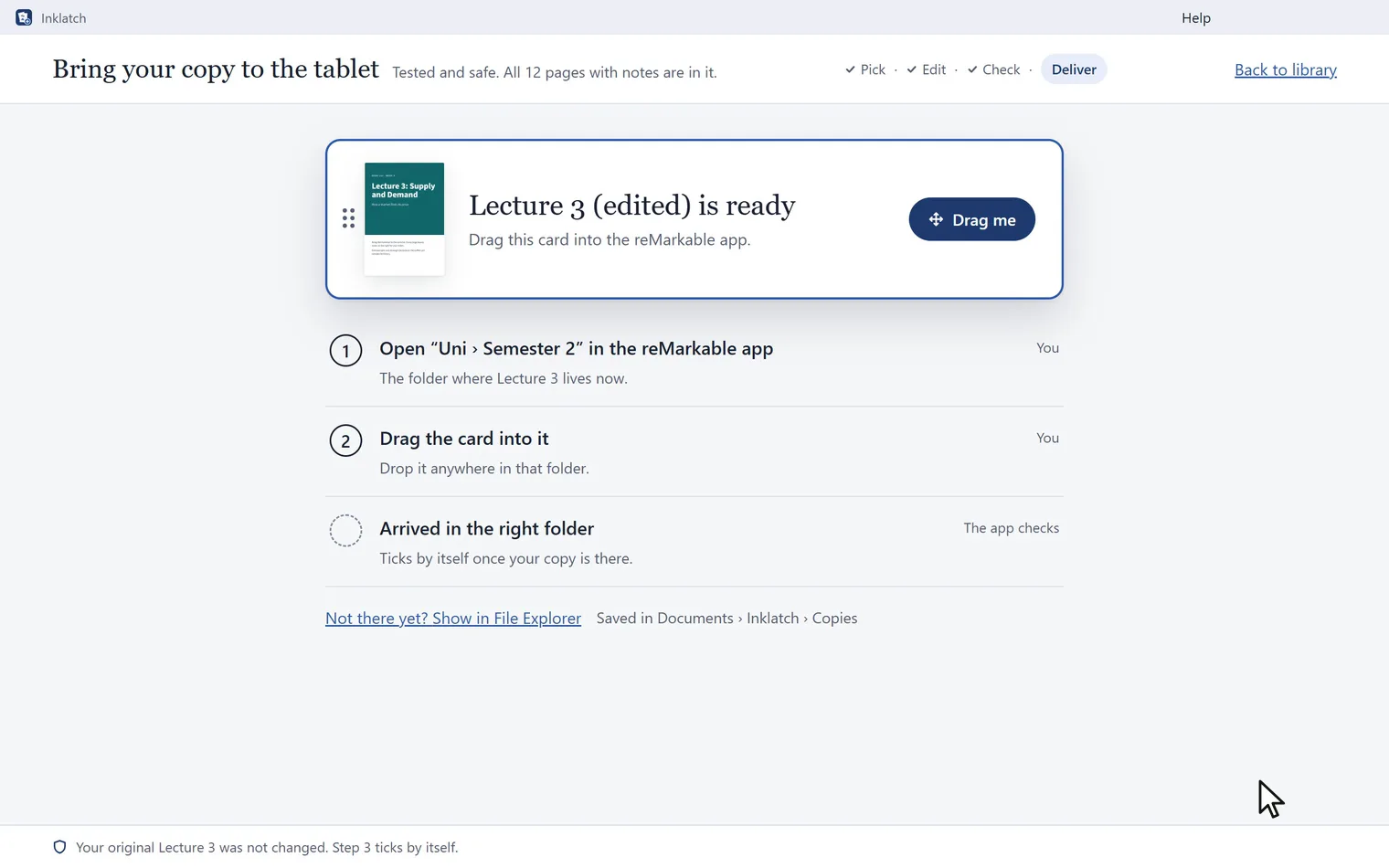
- When your changes are done, click Make my copy. The button counts your changes, for example Make my copy (3 changes).Usually the next screen at once: "Bring your copy to the tablet".
- If a "Making your copy" card shows first, wait. It needs nothing from you, and usually takes a few seconds.
- Read the line beside the title of the next screen."Tested and safe. All 12 pages with notes are in it."
- Your copy is saved. Go on to bring it to your tablet.
Without a mouse
- Ctrl+Enter (Cmd+Enter on a Mac) makes your copy, on the edit screen and on the Check screen.
- While the pages have the keyboard, that key selects or unselects a page instead. On the Check screen, while you pick a page to pair with, it pairs that page instead. Then press Tab until you reach Make my copy, and press Enter.
- No key cancels the card. Use Cancel.
What happens at each station
The card shows only when the copy takes longer than half a second, so you often won't see it. Each of its five stations gets a ✓ when it's done.
Making your copyLecture 3 (edited). Your original stays as it is.
Packing: we save your copy as one file the reMarkable app can open.
Usually a few seconds.Cancel
| Station | The card says | What Inklatch does |
|---|---|---|
| Copy | "Copying: we make a fresh copy of Lecture 3, with all its notes." | Reads your original again, only reading. It may have synced since you opened it. |
| Change | "Changing: we make your 3 changes on the copy." | Makes your changes on that fresh copy, in memory. |
| Check | "Checking: we open your copy again and make sure every page and every note is there." | Opens the copy again and tests how it's built. Then compares every page's PDF and notes with your changes. |
| Pack | "Packing: we save your copy as one file the reMarkable app can open." | Saves the tested copy under a temporary name, then gives it its real name. A half-saved file never looks like a copy. |
| Hand over | "Handing over: your copy is ready to bring to your tablet." | Opens the next screen, where you bring the copy to your tablet. |
Your copy's name and where it's saved
Lecture 3your original, keeps its name
Lecture 3 (edited)your copy
Lecture 3 (edited 2)only if (edited) is taken, then (edited 3)
Documents›Inklatch›Copies›Lecture 3 (edited).rmdoc
- Your copy is called Lecture 3 (edited). Your original keeps its name, and stays as it is.
- If that name is taken in your library or the copies folder, your copy is Lecture 3 (edited 2). Then (edited 3), and so on. Capitals don't count.
- Editing Lecture 3 (edited) again gives Lecture 3 (edited 2), never a second (edited).
- Copies are saved as .rmdoc files in Documents › Inklatch › Copies, on Windows and on a Mac.
- Inklatch never deletes a copy there, and never saves one in the reMarkable app's folder.
- Characters Windows doesn't allow in a file name, such as : or ?, become _ in the file name. The document's name keeps them.
If something else happens
- The button says Make a change first
- You have no changes yet, or you undid them all. Make a change, and the button comes on.
- "We couldn't make a safe copy."
- "We couldn't make a safe copy. Nothing was saved. Your document is unchanged."A ✕ marks the station that stopped. Click Back to editing, or press Esc: every change is still there. Click Show details to see what happened and what you can do. Each reason is on Fix a problem. Save diagnostics… opens Report a problem. It saves nothing by itself.
- "Lecture 3 changed while you edited, so we used its newest version. Your copy has your latest notes."
- Nothing to do. Lecture 3 synced while you edited, and Inklatch made your copy from its newest version.
- "A copy is already being made."
- "Wait for the other copy to finish, then try again."You made another copy straight after Cancel, while the first was still finishing.
- You clicked Cancel
- The card closes at once, and every change is still there. Click Make my copy when you're ready.
- Your copy is called Lecture 3 (edited 2)
- Lecture 3 (edited) was taken, in your library or in the copies folder from an earlier copy. This also happens after Cancel at the very last moment. Once saving has started, Cancel can't stop it. The copy stays in the copies folder, and Inklatch stays on your pages without saying it was saved.
Next: Bring your copy to the tablet, to send it to your tablet.