 Inklatch
 1234567
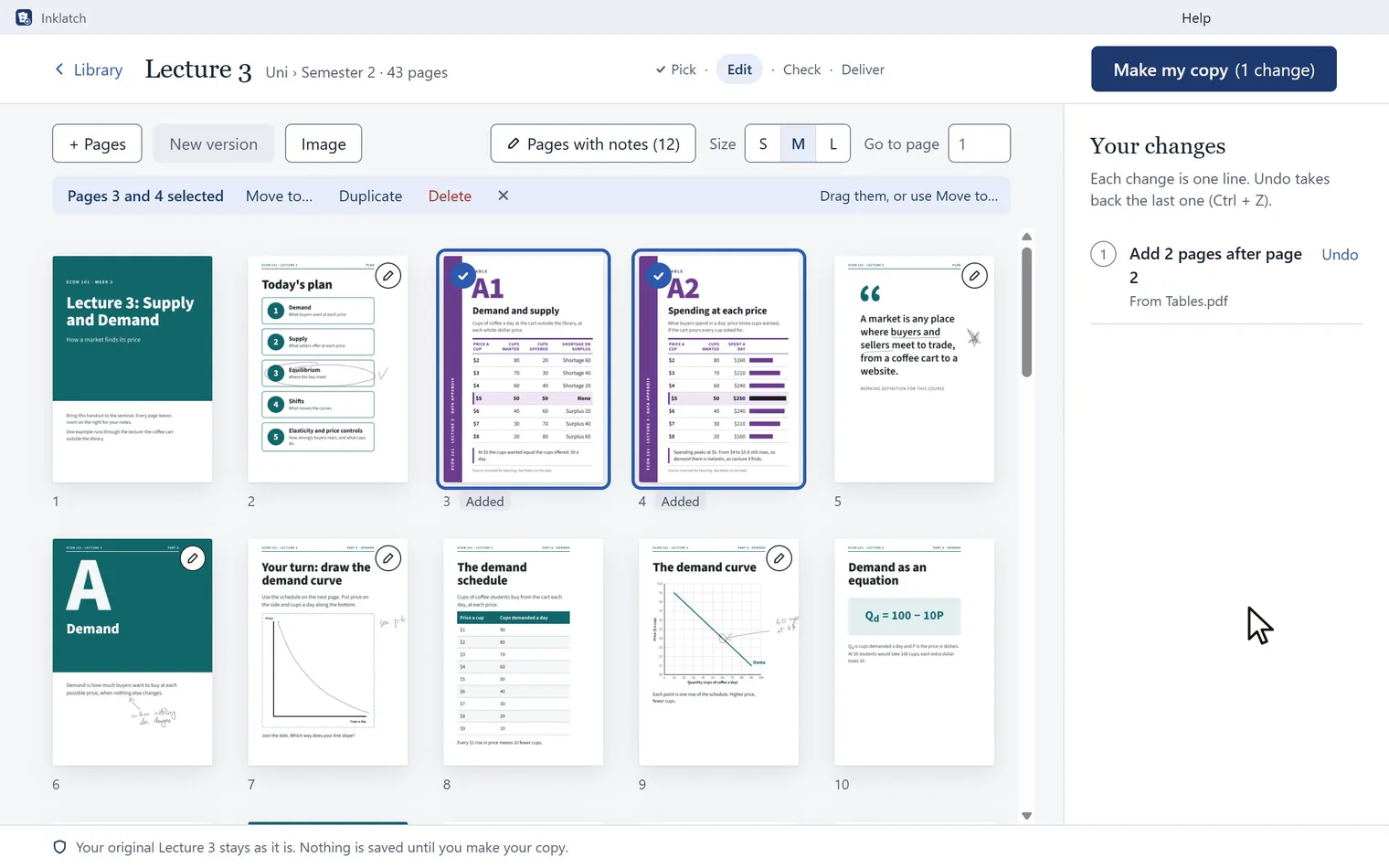
- 1A pen badge: this page has notes.
- 2Size: S, M or L. L is large enough to read your notes.
- 3Pages with notes (12) shows only the pages with notes.
- 4Go to page jumps to a page by its number.
- 5A tick: this page is selected.
- 6The bar says what is selected. Its X clears the selection.
- 7Each page's number is under it.
Steps
- Open your document from the library, for example Lecture 3. See Find your documents.Every page in order, with your notes. A pen badge at the top right means a page has notes.
- Choose a page size next to Size: S, M or L. At the window's starting size, S shows 7 pages a row, M shows 5, and L shows 3. L is large enough to read your notes.
- To see only the pages with notes, click Pages with notes (12). Click it again to see all pages.
- To jump to a page, type its number in Go to page and press Enter.A thin dashed ring on that page. It isn't selected.
- Click a page to select it.A tick on the page, and "Page 9 selected" in a bar above the pages.
- To select more, Shift-click another page to select every page in between. Or Ctrl-click (Cmd-click on a Mac) to add or remove one page."Pages 9 to 11 selected" in the bar.
- To clear the selection, click the X at the end of the bar, or press Esc. Clicking empty space between the pages does nothing.
Each page's number is under it. Each document opens with all its pages at size M. Inklatch doesn't remember the size or the notes view. The blue button says Make a change first until you change something. Nothing is saved until you make your copy.
Without a mouse
- Press Tab until you reach the pages. The pages are one stop.
- Move the dashed ring with the keys below. It shows the page you're on without selecting it.
- Press Space or Enter to select that page alone.The page's tick, and the bar above the pages.
↑←↓→← → one page
↑ ↓ one row
Page UpPage Downa screenful
HomeEndfirst page,
last page
SpaceEnterselect that page alone
Shift+→select on the way
- ← → one page, ↑ ↓ one row, Page Up Page Down a screenful, Home the first page, End the last.
- Hold Shift with any of those keys to select every page on the way. Shift+Space selects from the last selected page to this one.
- Ctrl+Space adds or removes the page you're on (on Windows). On a Mac, Cmd-click the page instead.
- Ctrl+A (Cmd+A on a Mac) selects all the pages shown.
- Esc clears the selection. With nothing selected, Esc goes back to the library. If you've made changes, Inklatch asks first.
- If the page you're on has an image and is the only one selected, Enter opens its image. See Add an image.
Other ways
- In a narrow window, one View button takes the place of Pages with notes, Size and Go to page. Its menu has All pages, Pages with notes (12), and the three page sizes. To find a page there, scroll or use the arrow keys.
- If Pages with notes is on and you go to a page without notes, Inklatch shows all pages again.
- The number on Pages with notes (12) follows your pages as they are now.
If something else happens
- "Notes not previewable" under a page
- Inklatch couldn't draw any of that page's notes in its picture. "Some notes not previewable" means part of them was left out, typed text for example. Point at the tag to see why. The tag is only about the picture: your notes go into your copy exactly as they are.
- A page shows plain paper
- Inklatch is still drawing it. It draws every page itself and never uses the reMarkable app's own pictures.
- Pages with notes can't be clicked
- No page in the document has notes.
- Nothing happens after Go to page
- The number is higher than the number of pages, or lower than 1. Type a page number the document has.
- A page has a tag such as Added, Image or Moved
- Tags show your changes. One tag shows at a time. Moved shows only for your last change, so it goes when you make the next one.
- Pages leave the selection
- Turning on Pages with notes hides the pages without notes, and hidden pages leave the selection.
Next: Add pages from a PDF, or Move, delete or duplicate pages with the pages you selected.