 Inklatch
Steps
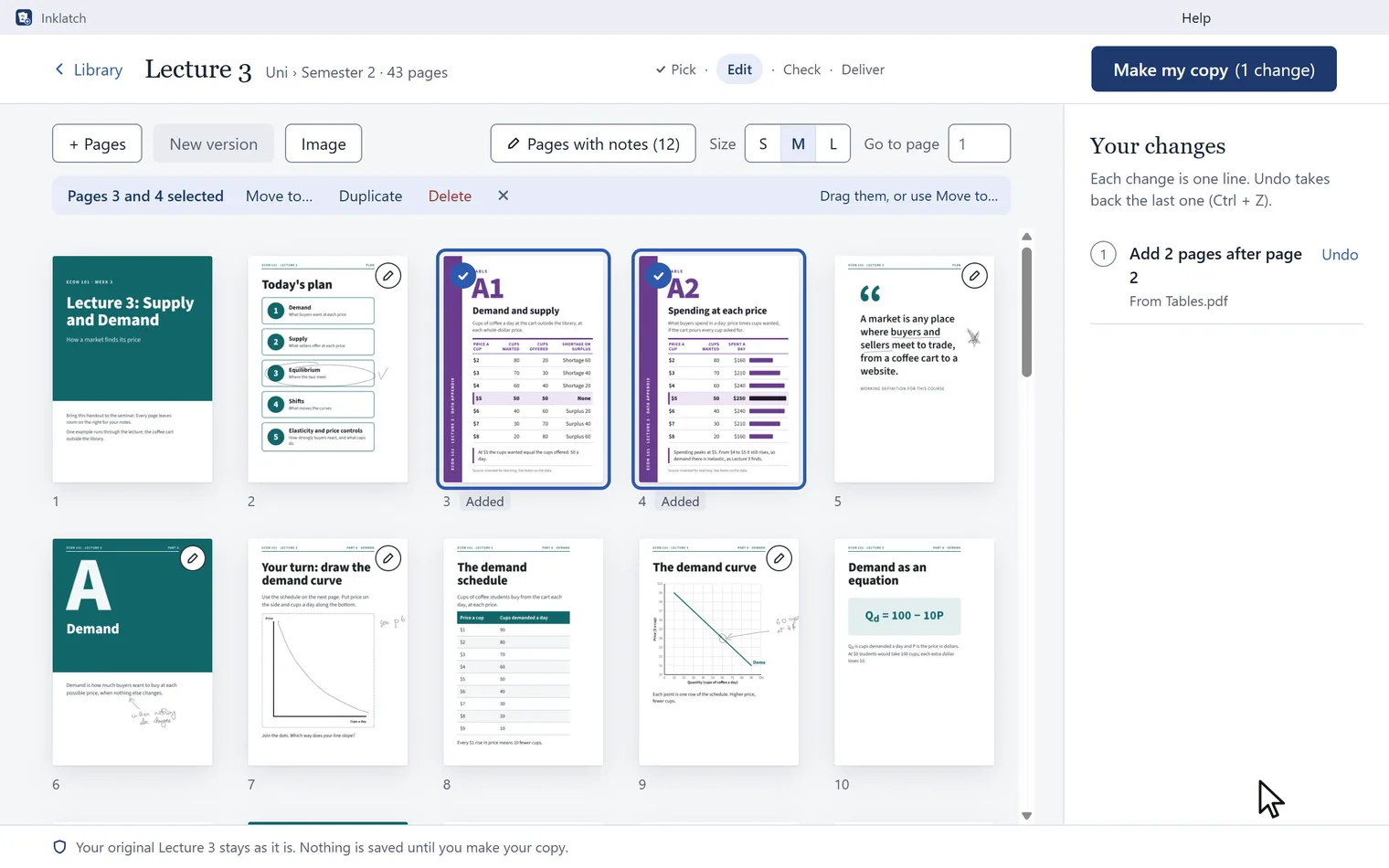
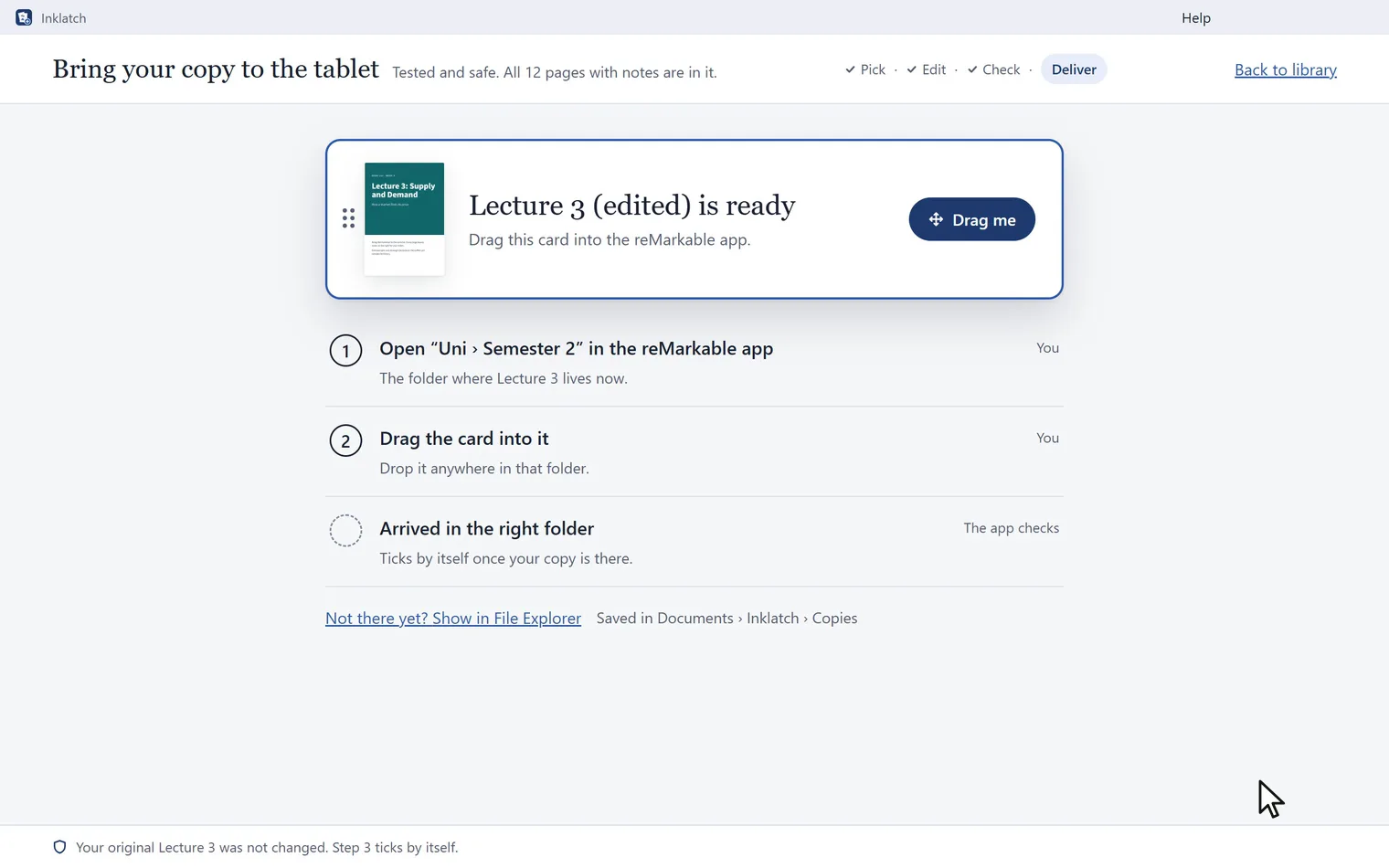
- Click Make my copy. See Make my copy."Bring your copy to the tablet", with a Drag me card and a list of three steps.
- Open the reMarkable app on this computer. In it, open the folder named in the first of the three steps on screen, for example Uni › Semester 2. That's where Lecture 3 lives now.
- Drag the Drag me card into the reMarkable app's window, and let go anywhere in that folder.Step 3 says "Arriving…".
- Wait. It takes 10 to 20 seconds, and you don't need to do anything."All done", and a ✓ on all three steps.
- Delete the old Lecture 3: move it to the trash in the reMarkable app. Don't trash Lecture 3 (edited). Or click Keep both."The old Lecture 3 is in the trash."
- Click Back to library. The reMarkable app syncs your copy to your tablet.
Notes you write on the old one won't be in Lecture 3 (edited). If you keep both, write new notes in your copy. A copy also stays in Documents › Inklatch › Copies.
Keep the reMarkable app open while you drag. Inklatch only reads its folder. It never deletes the old one for you, never writes to the reMarkable app's files and never uses the cloud.
Without a mouse
- The card has no key: it needs a drag. Press Tab until you reach Not there yet? Show in File Explorer (Not there yet? Show in Finder on a Mac), and press Enter.File Explorer (Finder on a Mac), with your copy selected.
- Drag the copy from there into the reMarkable app. Inklatch has no other way to hand it over in this version. Step 3 ticks the same way.
If something else happens
- "Still arriving…"
- "It is taking longer than usual."Nothing came within 10 seconds, or it wasn't complete after 30. The drop most likely missed. Click Show in File Explorer (Show in Finder on a Mac) in the box under the list. Drag the copy from there into the reMarkable app's open folder. A first drag has been seen to bring nothing, and the second try worked.
- You'd rather drag the copy from File Explorer
- Click Not there yet? Show in File Explorer (Not there yet? Show in Finder on a Mac). Drag the copy from there into the reMarkable app's open folder. Step 3 ticks the same way.
- "Still not there after you dragged it from File Explorer?"
- Click Save diagnostics… and send the file to support. See Report a problem.
- "It arrived, but in another folder."
- "Lecture 3 (edited) landed in My files. Move it to Uni › Semester 2 in the reMarkable app."Move it in the reMarkable app. Step 3 clears by itself. OK only hides the message.
- "We found it two times."
- "Lecture 3 (edited) is in Uni › Semester 2 twice. Delete one in the reMarkable app."You dragged it twice, and each drag makes a document. The reMarkable app doesn't warn you. Move one to the trash in the reMarkable app. OK only hides the message.
- "It arrived, then went to the trash."
- "Lecture 3 (edited) is in the trash. Restore it in the reMarkable app, or drag the card in again."The card comes back. Restore your copy in the reMarkable app, and it's "All done" again. Or drag the card in again.
- Step 1 says "Open the folder you want it in, in the reMarkable app"
- Your copy came from a saved file, not from your library. Any folder is right, and there's no old one to delete.
- "Lecture 3 changed while you edited, so we used its newest version. Your copy has your latest notes."
- Nothing to do. Lecture 3 synced while you edited, and your copy has its newest notes.
- Step 3 doesn't tick after you renamed the copy
- Inklatch knows your copy by its name and its PDF. Wait for "All done" before you rename it in the reMarkable app.
- You clicked Back to library too early
- Inklatch stops checking, but an import already on its way still finishes. Your copy stays in Documents › Inklatch › Copies.
- Next time, the library says "The old Lecture 3 is still in Uni › Semester 2. Delete it so you don't write on the wrong one."
- Your copy and the old one are both still in your library. Show me how opens this screen again. Keep both stops the reminder. See What each message means.
Why a PDF you export and import again has notes you can't erase, and how to keep them erasable: Why re-importing a PDF flattens your reMarkable notes.
Next: See what your copy looks like, to know what to expect on the tablet.