 Inklatch
Why your notes go flat
On a reMarkable, your notes are ink: lines the tablet keeps apart from the PDF, page by page. That’s why you can erase them, move them or write around them.
Export turns your document into an ordinary PDF that any app can open. To do that, the tablet draws your notes into each page, like a photocopy. reMarkable’s apps export as PDF, PNG or SVG, and each holds a drawing of your notes, not the ink.
Import that PDF, and the tablet sees a new document. Your notes are now part of the paper. The eraser works on ink only, so it passes over them, and the selection tool can’t pick them up.
| Ink, in your document | Flat, after export and import | |
|---|---|---|
| Erase it | Yes | No |
| Select it, move it, resize it | Yes | No |
| Write more on the page | Yes | Yes, as new notes on top |
When export is the right call
Export is the right tool when the document leaves your tablet: to send it to someone without a reMarkable, to print it, or to keep a copy exactly as you left it. The trouble starts only when the export comes back as your working copy.
Your options
Four ways people handle it, simplest first.
Keep the original as your working copy
Free
Export only to share or print. Keep writing in the original, where your notes are still ink.
Effort low
Change it on the tablet
Free · on the tablet
Add blank pages, and move or copy your handwriting between pages and documents with the selection tool. It can’t add pages from another PDF or swap in a new version.
Effort low
Accept flat notes
Free
Fine for a finished document you’ll only read, send or print. You can still write on it: new notes are ink, the old ones stay flat.
Effort low
Use Inklatch
$19 once · Windows and Mac
A desktop app that changes the reMarkable document itself: add pages, a new version, an image, move, delete or duplicate pages, or merge. Your notes stay as they are, and you can still erase them.
Effort low
| Notes you can still erase | Change pages on a computer | Cost | |
|---|---|---|---|
| Keep the original | Yes | No | Free |
| Change it on the tablet | Yes | No, on the tablet only | Free |
| Accept flat notes | No, they’re part of the page | Yes, with any PDF editor | Free |
| Inklatch | Yes | Yes | $19 once |
With Inklatch
- Let the reMarkable desktop app finish syncing, so your newest notes come along.
- Open your document in Inklatch: the reMarkable document, not an exported PDF.
- Make your change: add pages, a new version, an image, or move, delete or duplicate pages.
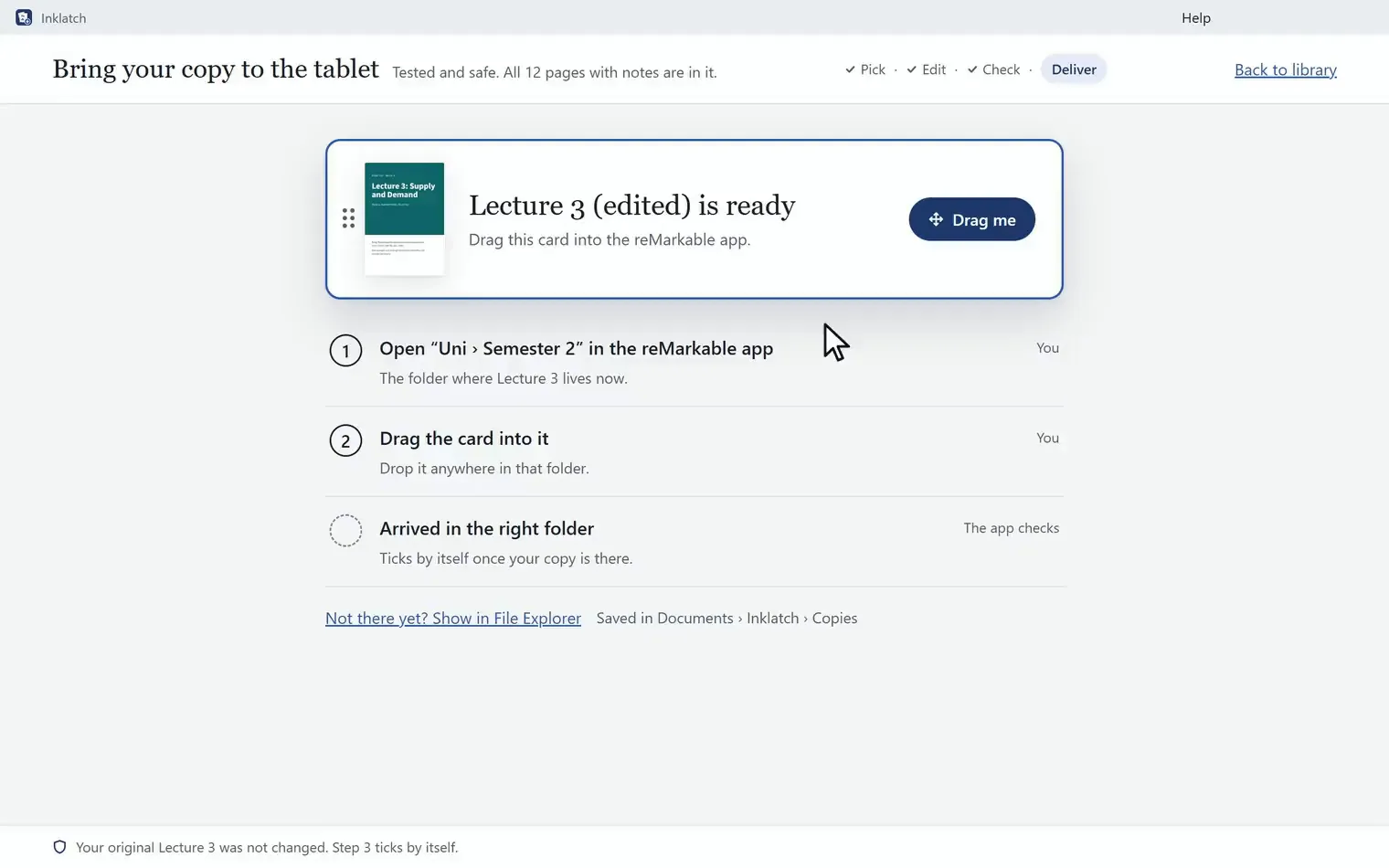
- Click Make my copy, then drag the copy into the reMarkable desktop app. Your notes arrive, and you can still erase them.
What your copy has:
| In your copy | |
|---|---|
| Your notes | As they were. On the tablet you can still erase, move or add to them. |
| Your pages | With your change, each page with its own notes. |
| Your original | Unchanged, until you delete it. |
Your original document stays as it is. Inklatch makes a new copy and checks it before it’s saved. It works with the reMarkable desktop app on your computer, and never connects to the reMarkable cloud.
What to watch for
- Start from the document, not an export. An exported PDF’s notes are already flat, and Inklatch can’t turn them back into ink either.
- Keep the original until your copy arrives. Your copy is a new document. Once it’s on your tablet, delete the old one, or keep both.
- Sync first. Inklatch works from the copy on your computer, so let the desktop app finish syncing.
- PDF documents only. Notebooks and EPUBs aren’t listed in Inklatch.
Questions people ask
Why can’t I erase notes on a PDF I exported and imported again?
Because they’re part of the page now. The export drew them into each page, and the eraser works only on ink.
Can I turn flat notes back into ink?
Not on the tablet. If you still have the original document, use it: its notes are still ink.
Should I stop exporting?
No. Export to share, print or keep a snapshot. Just keep writing in the original.
Does Inklatch export my notes?
No. It copies them unchanged into a new copy of your document, and checks the copy before it’s saved.
Can Inklatch open an exported PDF?
It can add the PDF’s pages to a document, but the notes in them stay flat. To keep ink, open the reMarkable document instead.