 Inklatch
Why the tablet can’t merge PDFs
A reMarkable keeps two kinds of pages. Notebook pages, and the blank note pages you add to a PDF, belong to you: you can move them to another notebook or document.
The pages of a PDF belong to the file you imported. reMarkable’s user manual says they can’t be deleted or moved out to other documents. So two PDFs stay two documents, however many notes you write on them.
Your notes sit on top of each page. The selection tool can copy them to a page in another document, but the PDF page under them stays behind.
| Notebook pages and note pages | A PDF’s own pages | |
|---|---|---|
| Move out to another document | Yes | No |
| Delete | Yes | No |
| Copy the handwriting to another page | Yes, with the selection tool | Yes, with the selection tool |
Your options
Four ways people handle it, simplest first.
Keep them as two documents
Free
Put both in one folder, or give them the same tag, and open one or the other. Nothing changes, so nothing can go wrong.
Effort low
Move pages on the tablet
Free · on the tablet
In Page overview, long-press notebook pages or note pages and move them out to the other document. Copy handwriting between pages with the selection tool. A PDF’s own pages stay where they are.
Effort medium
Export both and merge the PDFs
Free · any PDF editor
Export each document as a PDF, merge the two files on a computer, then import the result. It’s one document, but your notes are drawn into the pages: you can’t erase or move them.
Effort medium
Use Inklatch
$19 once · Windows and Mac
A desktop app. Pick the pages of one reMarkable document and add them where you want in the other, each with its own notes.
Effort low
| One document | Notes you can still erase | Cost | |
|---|---|---|---|
| Keep them as two | No | Yes | Free |
| Move pages on the tablet | Notebooks and note pages only | Yes | Free |
| Export and merge the PDFs | Yes | No, they’re part of the page | Free |
| Inklatch | Yes | Yes | $19 once |
With Inklatch
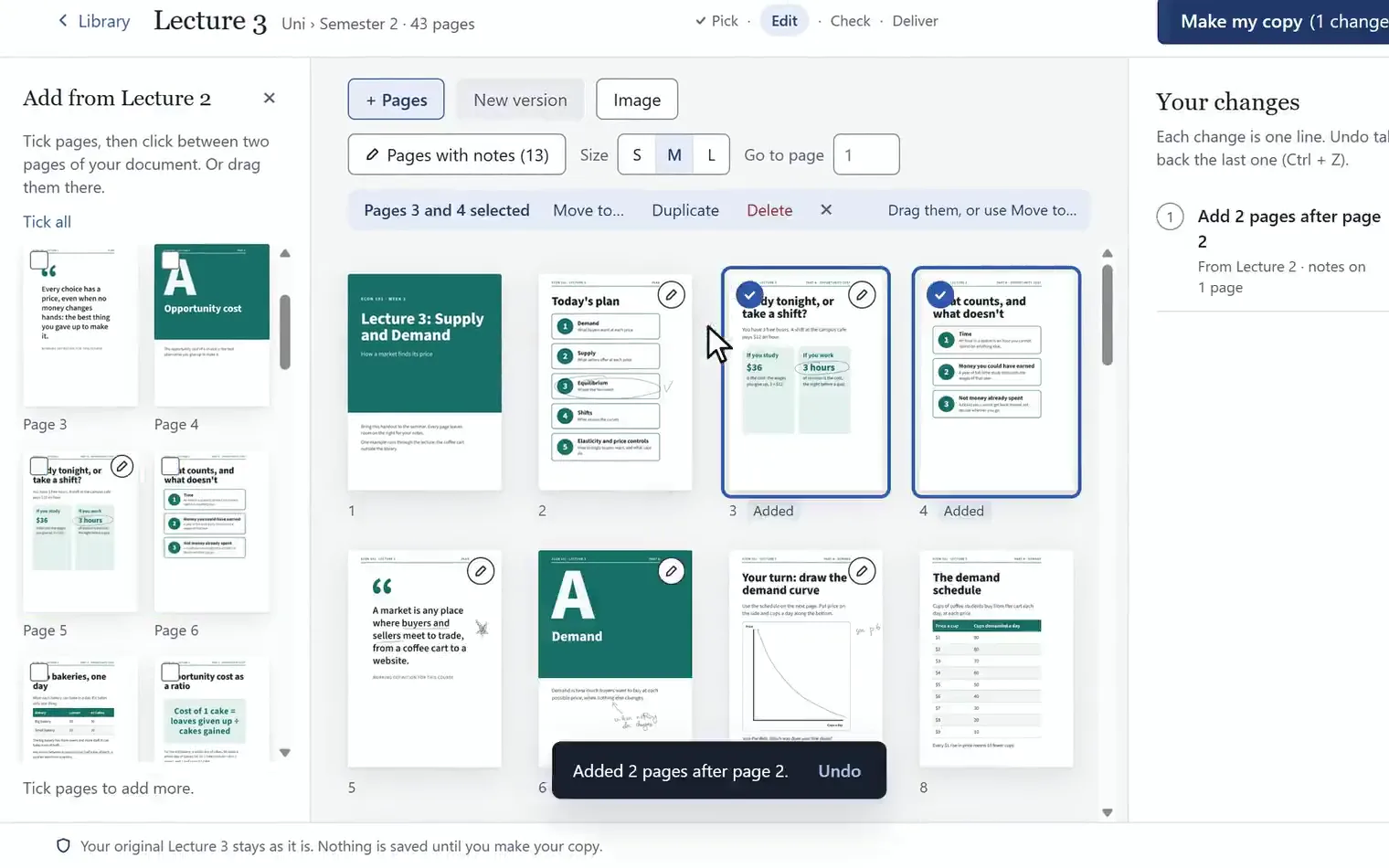
- Open the document you want to add to, for example Lecture 3.
- Click + Pages, then Another reMarkable document, and click Lecture 2.
- Tick the pages you want, or click Tick all. Click the + between two pages of Lecture 3, then Add here.
- Click Make my copy, then drag the copy into the reMarkable desktop app.
What your copy has:
| In your copy | |
|---|---|
| Your notes | On every page, as they were. You can still erase, move or add to them. |
| Pages from Lecture 2 | Each with its own notes, its template and its page tags. |
| Lecture 3’s name, tags and settings | Unchanged. |
| Both originals | Unchanged, until you delete them. |
To merge three handouts, add the pages of the second, then click + Pages again for the third. Inklatch makes a new copy and checks it before it’s saved. It works with the reMarkable desktop app on your computer, and never connects to the reMarkable cloud.
What to watch for
- PDF documents only. Notebooks and EPUBs aren’t in Inklatch’s list. To combine notebooks, moving pages on the tablet is free.
- Sync first. Inklatch uses each document as it was when you picked it, so let the desktop app finish syncing.
- A new version comes first. To swap in a new version of the PDF and add pages too, do the new version first. Inklatch says: “A new version comes first. Undo your changes to use one.”
- Keep the originals until your copy arrives. Your copy is a new document. Once it’s on your tablet, delete the old ones, or keep them.
Questions people ask
Can I merge two PDFs on my reMarkable?
Not on the tablet, as of November 2026. A PDF’s own pages can’t move to another document. Notebook pages and note pages can.
Can I merge two notebooks?
Yes, on the tablet. In Page overview, long-press the pages and move them out to the other notebook.
Why not export both and merge the PDFs?
You can, but the export draws your notes into the pages. After you import the result, they’re part of the page: you can’t erase or move them.
Do the original documents change?
No. Inklatch makes a new copy. Both originals stay as they are.
Can I merge more than two documents?
Yes. Add the pages of one document, then click + Pages again for the next.