 Inklatch
Steps
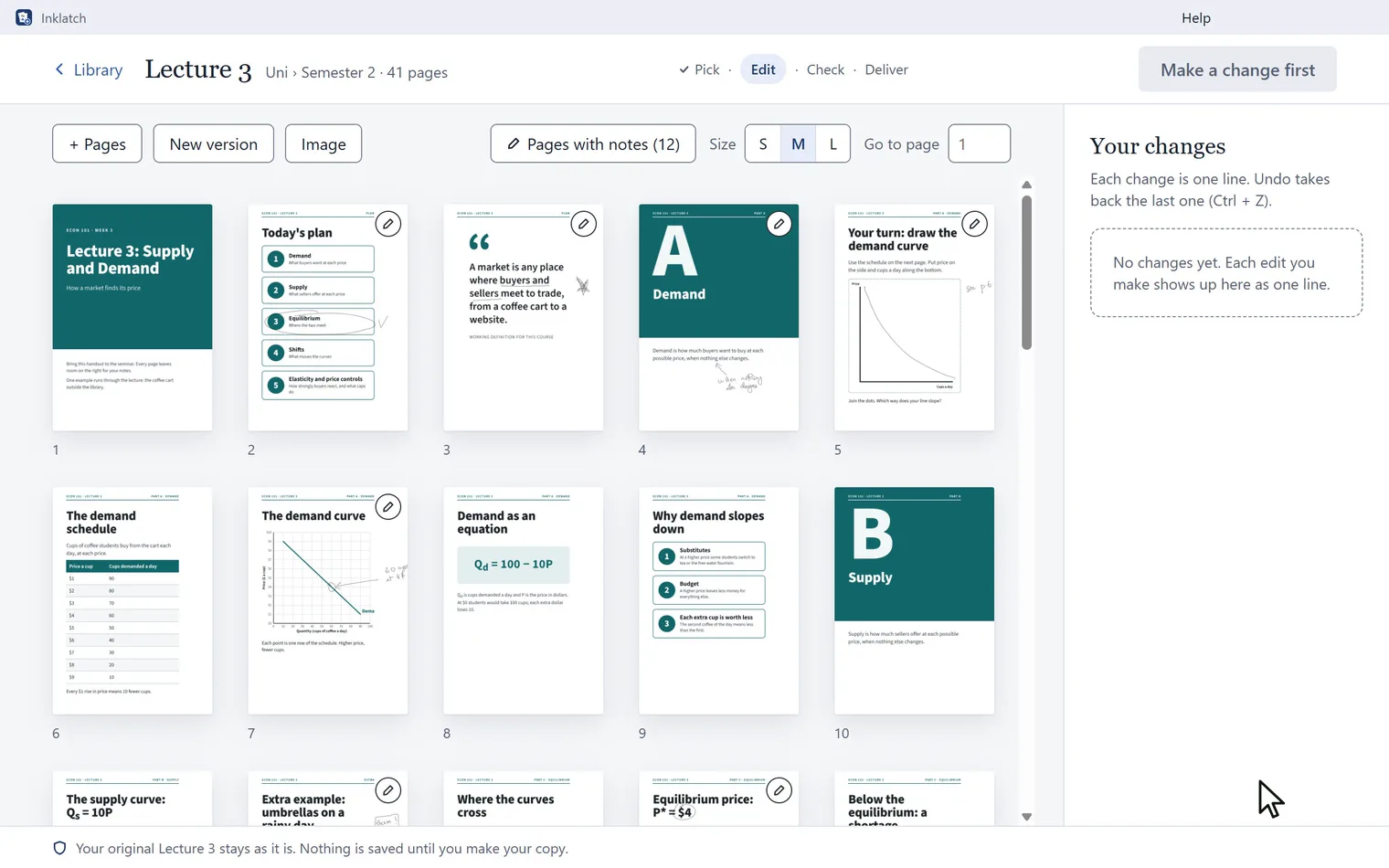
- In Inklatch, open the document you want to add to, for example Lecture 3.
- Click + Pages, then Another reMarkable document."Pick a document": your reMarkable library, the documents you opened or changed most recently first. The open document comes last.
- To find the document by name, type in Search documents.
- Click the document, for example Lecture 2.Its pages on the left, under "Add from Lecture 2", each drawn with its notes. A pen badge marks the pages that have notes. Nothing is added yet.
- Tick the pages you want. Click a page or its box. To take every page, click Tick all."2 pages ticked" under the pages.
- Point between the two pages of your document where the new pages go, and click the + that appears. Then click Add here.The new pages tagged Added, each with its own notes, and one line in Your changes: "Add 2 pages after page 2", with "From Lecture 2 · notes on 1 page" under it.
- Add more pages the same way, or go on to Make my copy when you're done. Nothing is saved until then.
- The list shows PDF documents only. Notebooks and EPUBs aren't in it.
- Each page you tick comes with its own notes, in the order of Lecture 2. Its template and page tags come too.
- Pages you deleted from Lecture 2 earlier don't show.
- Lecture 3 keeps its own name, tags and settings.
- Inklatch uses Lecture 2 as it was when you picked it, even if it syncs afterward.
Without a mouse
- Press Tab until you reach + Pages, and press Enter.The menu, with the keyboard on From a PDF.
- Press ↓ to reach Another reMarkable document, and press Enter.The list of documents, with the keyboard in Search documents.
- Type part of the document's name, press Tab until you reach the document, and press Enter.
- Press Tab until you reach the tick boxes, and press Space to tick each page. Or reach Tick all and press Enter.
- Choose Add after page… under the pages, type the page number the new pages go after, and press Enter.
- ↑ ↓ move in the menu, Enter picks, Esc closes it.
- Esc closes the list of documents, like Cancel.
- In the bar above the pages: ← → one page, ↑ ↓ one row, Home the start, End the end.
Other ways
- Drag the ticked pages onto your document. A blue line shows where they land.
- Add a saved reMarkable file: in the list, click Open a saved file…, and choose a file (.rmdoc). Cancel the window and you're back at the list.
- Drag a saved reMarkable file (.rmdoc) from File Explorer (Finder on a Mac) onto the pages. You see "Drop to add pages from this document". Drop it, and its pages open on the left, the same as from the list.
- Copy pages of the document itself: Lecture 3 is last in the list, below a line, with "Editing now · 41 pages". Pick it, tick pages, and they come with their notes. To copy pages in place, Duplicate is quicker.
- Changed your mind? Click Undo on the line in Your changes, or press Ctrl+Z (Cmd+Z on a Mac). The pages of that line go together. Redo brings them back.
If something else happens
- "We can’t find the reMarkable app. Open a reMarkable file you saved."
- Inklatch can't find the reMarkable desktop app on this computer, so it can't show your library. Click Open a saved file… and choose a saved reMarkable file instead.
- "Your reMarkable library has no documents yet."
- There's nothing in the list to add. Click Open a saved file… to add a saved reMarkable file.
- "No documents match “zzz”"
- No document's name has the words you typed. Check the spelling, or type less. The list holds PDF documents only.
- "This file can't be added. Drop a PDF, a PNG or JPEG image, or a saved reMarkable file (.rmdoc)."
- The file you dropped isn't one of those. To add pages from a PDF, see Add pages from a PDF. To put a picture on a page, see Add an image.
- "Lecture 2 has no pages to add."
- That document is empty. Choose another one.
- "This document is no longer in your reMarkable library."
- Inklatch can't find it in your library any more. Click + Pages and Another reMarkable document again to see the list as it is now.
- There's no + between the pages
- Tick at least one page first. The + works with a mouse; without one, use Add after page….
- New version is off
- "A new version comes first. Undo your changes to use one."A new version can come before a merge, never after. To use both, undo your changes. Swap in the new version first, then add the pages.
When a document can't be opened, the list closes and the message shows in red above the pages.
Why the tablet can’t merge two PDFs, and other ways to put two documents together: Merge two PDFs on reMarkable and keep all your notes.
Next: Undo and redo, to take back a change or bring it back.