 Inklatch
Steps
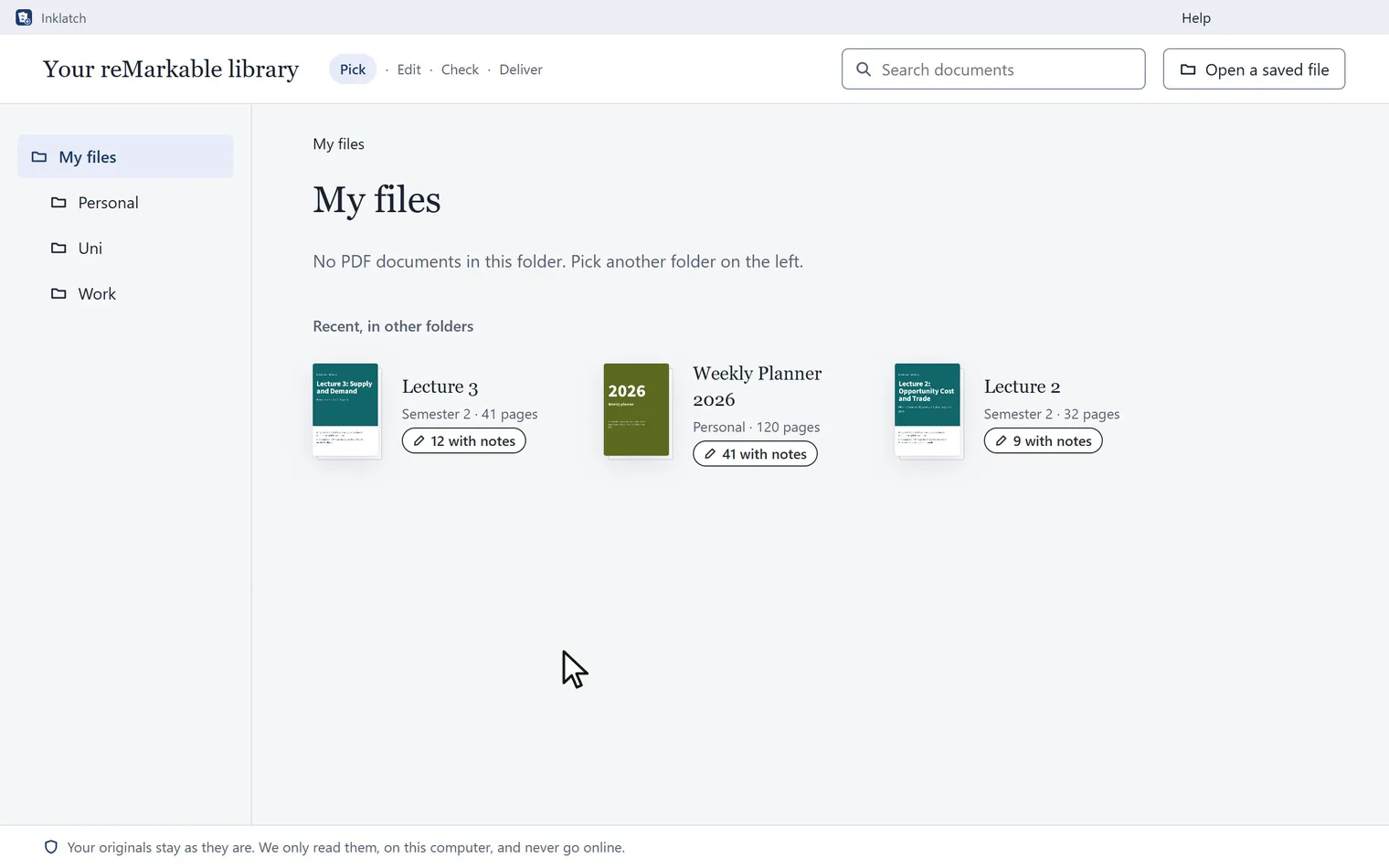
- Open Inklatch.For a moment, "We only read it. Nothing changes." Then "Your reMarkable library", open at the folder of the document you last opened.
- Click a folder on the left, for example Uni, then Semester 2.Your documents in that folder, with its path above them, such as My files › Uni › Semester 2.
- Find your document. Its card shows its first page, its name and its number of pages.
- Or type part of its name in Search documents. It looks in every folder, and big or small letters don't matter."Searching all folders", and each match's folder.
- Click the document, for example Lecture 3.Its pages, ready to change.
- If Inklatch asks you to let the reMarkable app sync first, click Open reMarkable app. Let it sync, then click the document again.
To go back up, click any part of the path, such as My files. My files is the top of your library.
A badge such as "12 with notes" counts a document's pages with notes. A document with no notes has no badge. The card's picture is the reMarkable app's own picture of page 1, for a quick look only. The badge counts from the reMarkable app's files. Once the document opens, Inklatch draws every page itself, and its count can differ.
Without a mouse
- Ctrl+F (Cmd+F on a Mac) goes to Search documents.
- Tab to a document, then the arrow keys move between documents. Enter opens one.
- Shift+F10, or the Menu key (on a Mac, Shift+F10, with fn too if your keyboard needs it), opens the "What should it do?" menu for a document. Choose Add pages or New version, then pick the PDF. This way doesn't ask about syncing, so let the reMarkable app sync first.
- Ctrl+O (Cmd+O on a Mac) opens a saved reMarkable file.
- Esc closes a message or a menu without doing anything.
Other ways
- Recent, in other folders lists up to 3 documents from other folders. They're the ones you opened lately, on your tablet or in the reMarkable desktop app.
- To open a saved reMarkable file (a .rmdoc file), click Open a saved file and choose it. Or drag it from File Explorer (Finder on a Mac) onto the window. Inklatch only reads it, and doesn't ask about syncing.
- Drag a PDF from File Explorer (Finder on a Mac) onto a document's card. Choose Add pages (see Add pages from a PDF) or New version (see Swap in a new version). This way doesn't ask about syncing either, so let the reMarkable app sync first.
- The list updates by itself a moment after the reMarkable app's files change. There's no refresh button.
If something else happens
- "This copy of Lecture 3 is from 10:42. Let the reMarkable app sync first, so your newest notes come along."
- The reMarkable desktop app isn't running. Click Open reMarkable app, let it sync, then click the document again. Or click Use this copy to open it as it is on this computer.
- "We can't find the reMarkable app."
- "Install it and sign in once, or open a reMarkable file you saved."Inklatch found no reMarkable library on this computer. The desktop app may be missing, or it hasn't synced anything yet. Click Get the reMarkable app for reMarkable's support site. Install the app, sign in and let it sync. Then close Inklatch and open it again. On a Mac, quit it from the Inklatch menu. Or click Open a file to open a saved reMarkable file.
- "No PDF documents in this folder. Pick another folder on the left."
- Inklatch lists only PDF documents. It doesn't show notebooks, EPUBs, the trash, or a document whose PDF isn't on this computer. Choose another folder, or search.
- "No documents match “Lectre”"
- "Check the spelling, or look in another folder."Search looks at document names only. Check the spelling, or click Clear search to see your folders again.
- "Only a saved reMarkable file opens here."
- You dropped a file on the window that is neither a saved reMarkable file (.rmdoc) nor a PDF, for example a Word file. A PDF dropped outside a document's card does nothing: drop it on the card instead.
- "This document is no longer in your reMarkable library."
- It left the reMarkable app's files after Inklatch last read them, for example to the trash. The list updates by itself. Choose the document again if it's still there.
- "The old Lecture 3 is still in Uni › Semester 2. Delete it so you don't write on the wrong one."
- Your copy has reached the reMarkable app, and the original is still there too. Show me how opens the steps for your copy again, at the note about the old one. Keep both stops this reminder for that document. See Bring your copy to the tablet.
- "Inklatch closed unexpectedly last time. Saving diagnostics helps us find out why."
- Save diagnostics… opens Report a problem. It saves nothing by itself. Not now closes the message. See Report a problem.
Next: See and select pages, to look through your document and pick the pages you want.