 Inklatch
Steps
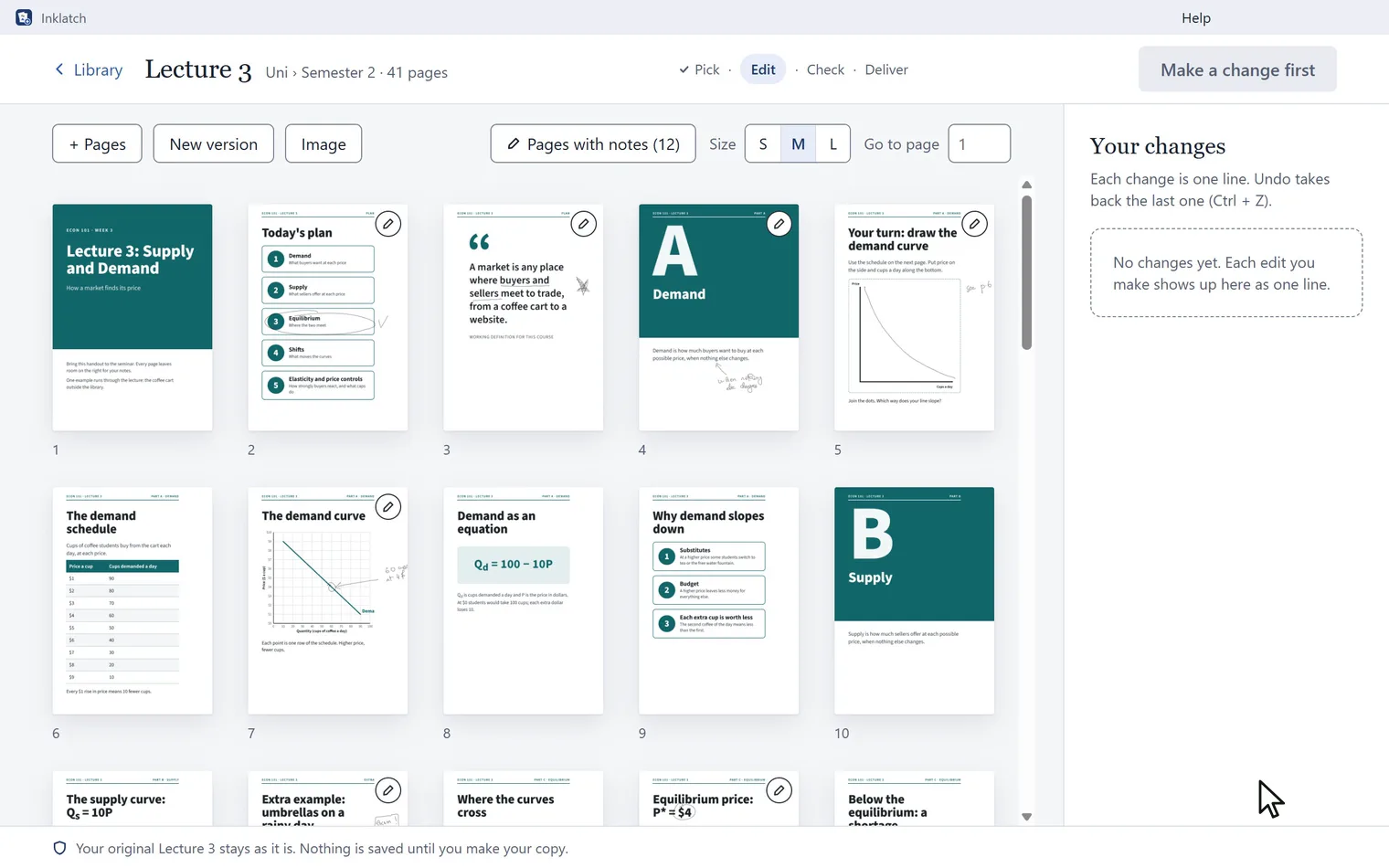
- In Inklatch, click your document, for example Lecture 3.
- Drag the PDF from File Explorer (Finder on a Mac) onto the pages. Or click + Pages, then From a PDF, and choose the file.The PDF's pages on the left, under "Add from Tables.pdf". Nothing is added yet.
- Tick the pages you want. Click a page or its box. To take every page, click Tick all."2 pages ticked" under the pages.
- Point between the two pages of your document where the new pages go, and click the + that appears.A blue line with "2 pages go here", and a bar above the pages.
- Click Add here.For a few seconds, a short message with Undo: "Added 2 pages after page 2." When it goes, you see the new pages tagged Added, and one line in Your changes: "Add 2 pages after page 2".
- Add more pages the same way, or go on to Make my copy when you're done. Nothing is saved until then.
Without a mouse
- Press Tab until you reach + Pages, and press Enter.The menu, with the keyboard on From a PDF.
- Press Enter, and choose the PDF in the window that opens.
- Press Tab until you reach the tick boxes, and press Space to tick each page.
- Choose Add after page… under the pages.The bar above the pages, with the keyboard in the After page box.
- Type the page number the new pages go after. Or move the line with the keys below.
- Press Enter.
- ← → one page, ↑ ↓ one row.
- Home the start, End the end. 0 in the box means the start.
- Esc cancels and keeps your ticks.
Other ways
- Drag the ticked pages onto your document. A blue line shows where they land.
- In your library, drop the PDF on the document and choose Add pages.
- Changed your mind? Click Undo on the message that appears, or on the line in Your changes, or press Ctrl+Z (Cmd+Z on a Mac).
If something else happens
- A message asks for a password
- "Tables.pdf is locked. Type its password to add its pages."Type the PDF's password and click Unlock. Inklatch uses it once and doesn't keep it. If you see "That password didn't work.", type it again.
- There's no + between the pages
- Tick at least one page first. The + works with a mouse; without one, use Add after page….
- "Tables.pdf has no pages."
- The file is empty. Choose another PDF.
- The PDF won't open
- A message such as "PDFium could not open the PDF (error 3)" means the file is damaged or isn't really a PDF. Open it in another app, save it as a PDF again, and try that file.
Why the tablet can’t do this on its own, and other ways to handle it: Add pages from another PDF on reMarkable and keep your notes.
Next: Make my copy, to build your new copy and test it.