 Inklatch
Steps
Move pages
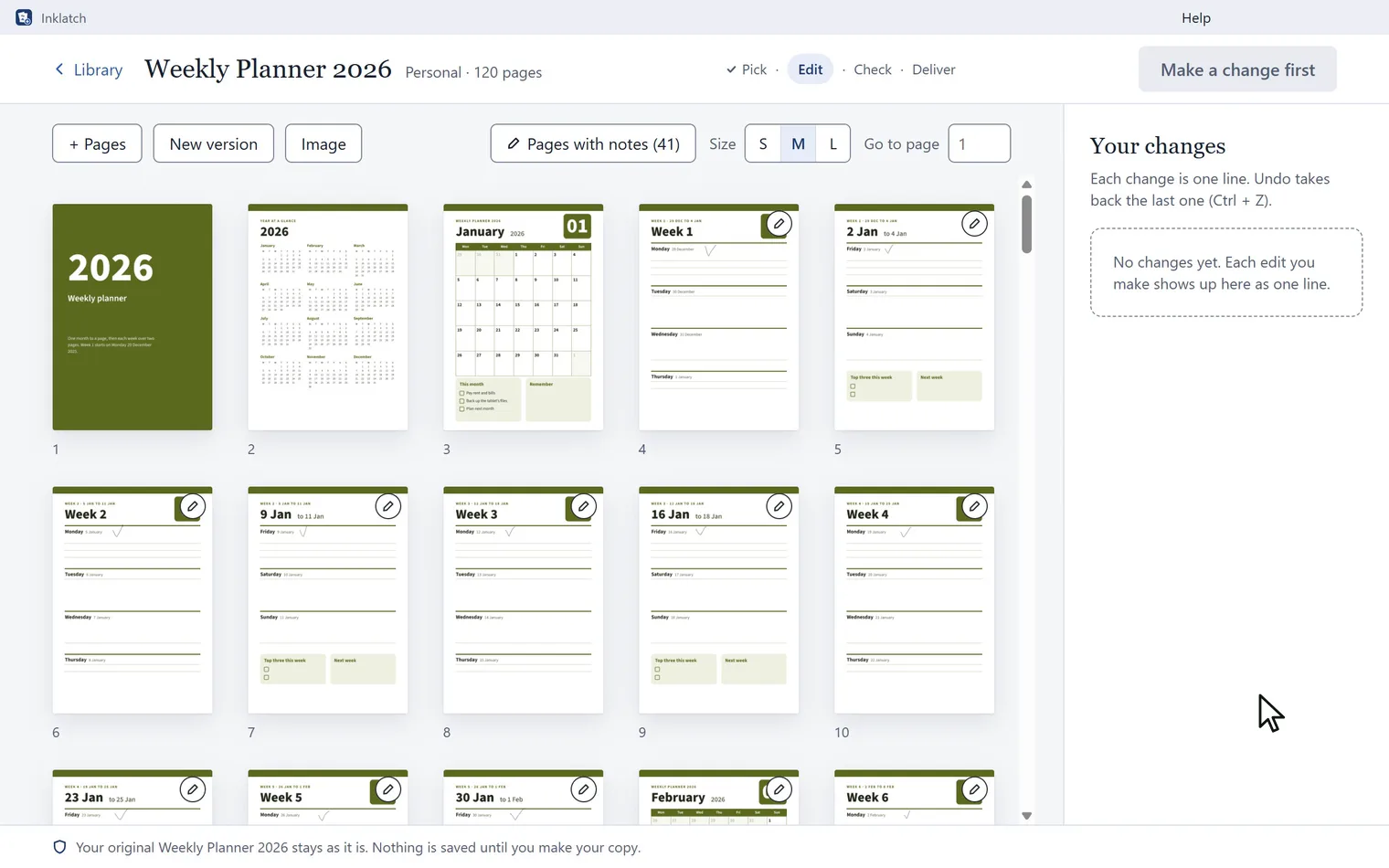
- In Inklatch, open your document, for example Weekly Planner 2026.
- Click the first page to move, then Shift+click the last one."Pages 8 and 9 selected" in the bar above the pages.
- Click Move to… in that bar.A bar in place of the toolbar, with an After page box and Move here. A blue line with "Pages 8 and 9 go here" shows where they are now.
- Point between the two pages where they go, and click the + that appears. Or type the page number they go after in the After page box.The blue line moves there.
- Click Move here."Moved 2 pages after page 5." for a few seconds, with Undo. The pages stay selected in their new place, tagged Moved.
Delete pages
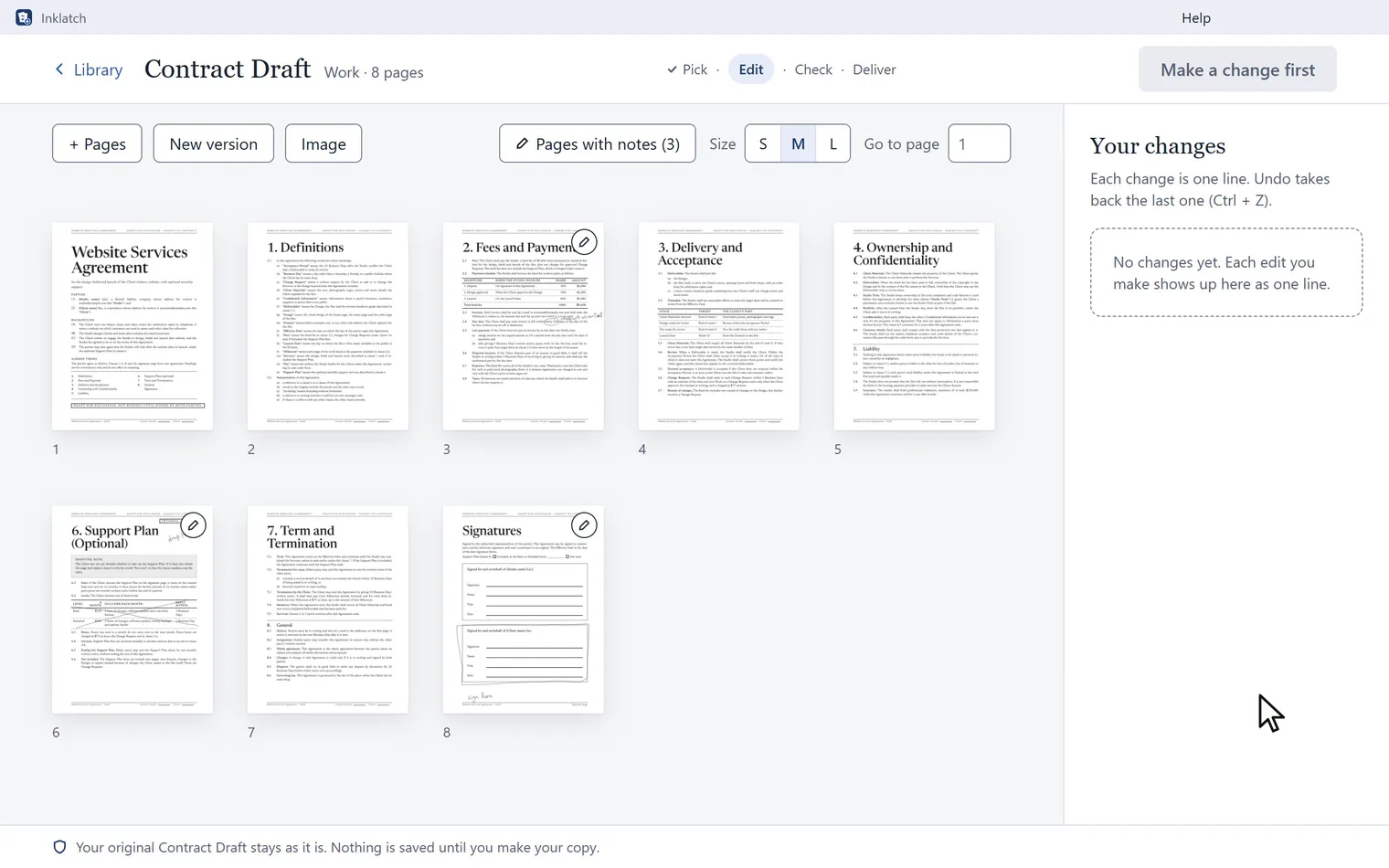
- Select the pages you want to delete, for example page 6 of Contract Draft.
- Click Delete in the bar above the pages.A page without notes goes at once, with a short message and Undo for a few seconds.
- If a page has notes, Inklatch shows a picture of it and asks first:"Page 6 has your notes. Delete it anyway? You can undo this."Click Delete page to delete it, or Keep page to keep it. Your original keeps the page either way.
In Your changes, each delete line says "It had no notes." or "It had your notes."
Duplicate pages
- Select the pages you want twice.
- Click Duplicate in the bar above the pages.A copy right after each selected page, with that page's notes. There's no short message and no tag, and the pages are no longer selected.
Go on editing, or go to Make my copy when you're done. Nothing is saved until then.
Without a mouse
- Press Tab until you reach the pages. Go to a page with the arrow keys, and press Space to select it. Shift and the arrow keys select more.
- To move them, press M.The keyboard in the After page box.
- Type the page number they go after, or move the line with the keys below. Press Enter.
- To delete them, press Delete (Delete or Backspace on a Mac).
- To duplicate them, press Ctrl+D (Cmd+D on a Mac).
- ← → one page, ↑ ↓ one row.
- Home the start, End the end. 0 in the box means the start.
- Esc cancels, and the keyboard goes back to Move to….
- When Inklatch asks about a page with notes, the blue Keep page has the keyboard. Enter or Esc keeps the page. To delete it, press Shift+Tab to reach Delete page, then Enter.
- Cut and paste: Ctrl+X (Cmd+X on a Mac) marks the selected pages, and they fade. Go to the page they go after, and press Ctrl+V (Cmd+V).
- Cut and paste work only while the pages have the keyboard. Esc cancels the cut, and so does any other change.
Other ways
- To select pages that aren't side by side, Ctrl+click each one (Cmd+click on a Mac).
- Drag the selected pages to where they go. A blue line marks the gap. The pointer says where they go, such as "Move 2 pages after page 5".
- Drag a page that isn't selected to move that page alone.
- While you drag, go near the top or bottom of the pages to scroll. Esc cancels the drag.
- In the Move to… bar, To the start and To the end set the place in one click. The minus and plus beside the number move it one page.
- Changed your mind? Click Undo on the message that appears, or on the line in Your changes, or press Ctrl+Z (Cmd+Z on a Mac). A deleted page comes back with its notes.
If something else happens
- Several of the pages have notes
- The message names up to 3 of them, such as "Pages 2 and 5 have your notes." For more, it counts them: "These 10 pages have your notes." or "10 of these pages have your notes." The buttons are Delete pages and Keep pages.
- Delete is off
- "A document needs at least one page."Every page is selected. Click Clear selection (the ×) and select fewer pages.
- Move here is off
- The pages are already in that place. Choose another place.
- The pages didn't move, and there's no new line
- They were dropped where they already were, so nothing changed. Drag them to another gap.
Next: Merge two documents, to add pages of another document, with their notes.