 Inklatch
What the tablet can and can’t do
On a reMarkable, a PDF page has two parts: the page from the PDF, and your notes on top. The Marker writes your notes, your signature too. Nothing on the tablet adds a picture to the page itself.
Pictures arrived in May 2026, with software 3.27, but only in notebooks. You drop a PNG or JPEG into a notebook from the desktop app, and you need a Connect subscription. A PDF can’t take one, as of November 2026.
If you add the picture to the PDF on a computer and import it again, the tablet sees a new document. It starts with clean pages, and your notes stay on the old one.
Your options
Five ways people handle it, simplest first.
Sign with the Marker
Free · on the tablet
Write your signature on the page, like any note. It’s handwriting, so you can move or erase it later.
Effort low
Copy your signature from a notebook
Free · on the tablet
Write it once in a notebook. Then select it, copy it, and paste it into the PDF. It stays handwriting, and every copy looks the same.
Effort low
Put the picture in a notebook
Connect subscription · desktop app
Drop a PNG or JPEG into a notebook from the desktop app. Fine for a screenshot beside your notes, but it can’t go on a PDF page.
Effort low
Add it on a computer and import again
Free · a PDF editor
Place the picture with a PDF editor and import the result. The tablet sees a new document, so your notes stay on the old one.
Effort medium
Use Inklatch
$19 once · Windows and Mac
A desktop app that puts a PNG or JPEG on any PDF page, where you want it. Your notes stay on top.
Effort low
| Any picture | On the PDF page | Notes you can still erase or edit | Cost | |
|---|---|---|---|---|
| Sign with the Marker | No, your handwriting only | Yes, as handwriting | Yes | Free |
| Copy from a notebook | No, your handwriting only | Yes, as handwriting | Yes | Free |
| Picture in a notebook | Yes, PNG or JPEG | No, notebooks only | Yes | Connect subscription |
| Add it on a computer | Yes | Yes | No, they stay on the old document | Free |
| Inklatch | Yes, PNG or JPEG | Yes | Yes | $19 once |
With Inklatch
- Open your document in Inklatch, for example Lecture 3.
- Click the page, then Image, and choose a PNG or JPEG. It opens on the page, half the page wide.
- Drag it into place, and drag a corner to resize it. It keeps its shape, and your notes stay on top.
- Click Back to all pages, then Make my copy, and drag the copy into the reMarkable desktop app. It syncs to your tablet.
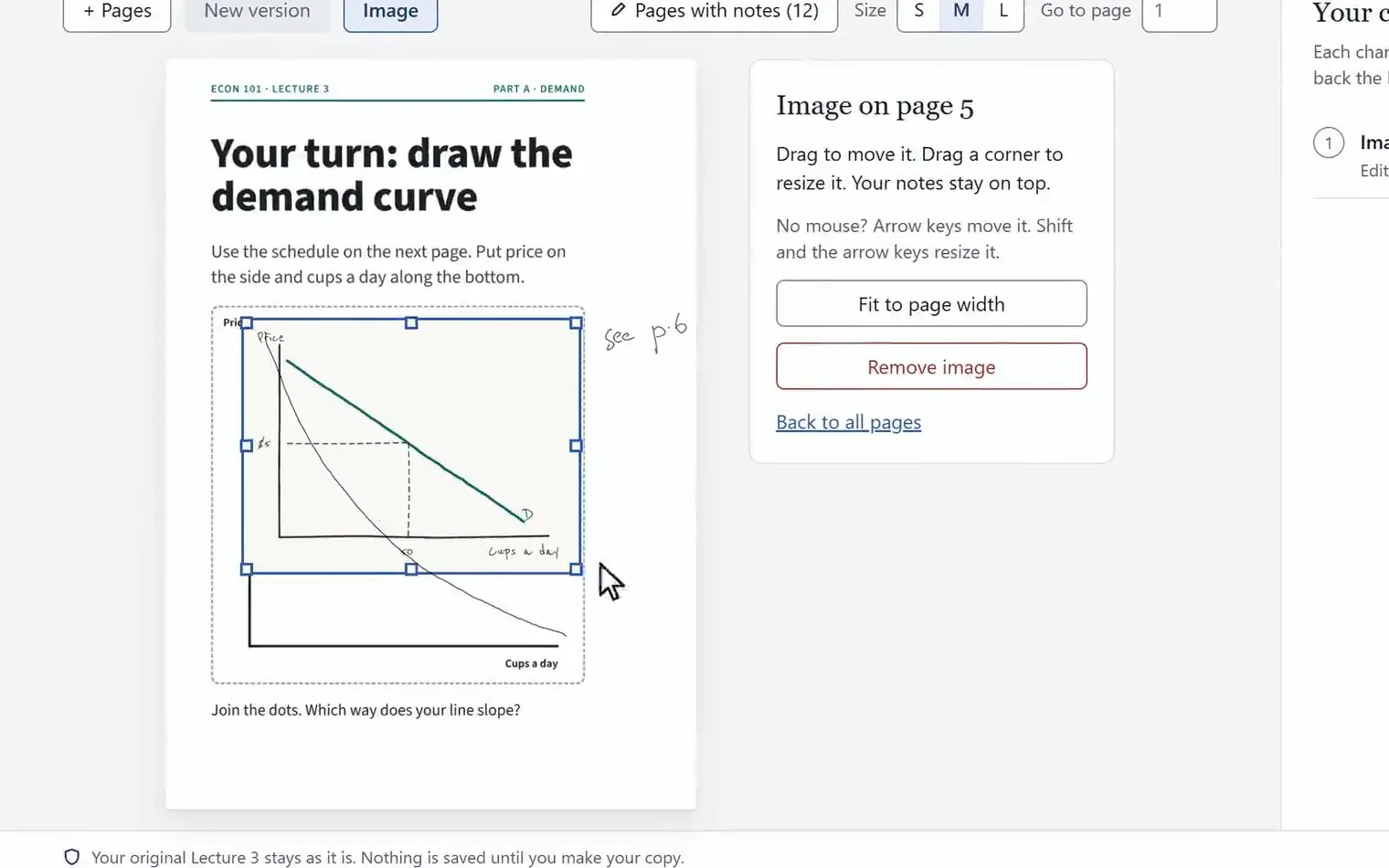
What your copy has:
| On the page | In your copy |
|---|---|
| Your picture | Part of the page, where you put it, at the size you chose. |
| Your notes | On top of it. You can still erase or add to them. |
| A PNG’s see-through parts | Stay see-through, so the page shows through. |
Your original document stays as it is. Inklatch makes a new copy and checks it before it’s saved. It works with the reMarkable desktop app on your computer, and never connects to the reMarkable cloud.
What to watch for
- Check that a picture of your signature is accepted. Some forms need a signature by hand. If you’re not sure, ask whoever needs the document.
- Place it before you make your copy. On the tablet the picture is part of the page: you can write over it, but not move or erase it.
- Use a PNG with a see-through background for a signature, so the line it sits on shows through.
- PNG or JPEG only, on a page from a PDF. A note page has no PDF behind it, so it can’t take a picture.
Questions people ask
Can I add an image to a PDF on the reMarkable itself?
Not as of November 2026. Since software 3.27, you can drop a PNG or JPEG into a notebook from the desktop app, with a Connect subscription. A PDF can’t take one.
How do I sign a PDF on a reMarkable?
Write your signature with the Marker, like any note. To reuse it, write it once in a notebook, then select it, copy it and paste it into the PDF.
Will the picture cover my notes?
No. The picture goes into the page, and your notes stay on top of it, as they were.
Can I move the picture later on the tablet?
No. On the tablet it’s part of the page. Place it in Inklatch before you make your copy.
Which pictures work?
PNG and JPEG. A PNG’s see-through parts stay see-through, which suits a signature.