 Inklatch
Who this is for. You’ve already written in a PDF planner or notebook PDF, and you need more pages in it. If you’re looking for reMarkable templates to download, this isn’t a template library. reMarkable’s free templates are in the tablet’s Templates menu.
What the tablet can do with templates
A reMarkable treats notebooks and PDFs differently.
A notebook page has a template behind it: lines, a grid, a daily or weekly planner. You change it from Layers, then Template.
A PDF planner is a file you imported. reMarkable’s help says built-in templates aren’t available on a PDF’s pages. Custom templates can’t be added to the Templates menu either. Its own advice is what planner owners already do: import a PDF with the layout you want.
You can still get more room. Tap Document settings, then Add note page, and the tablet adds a page for notes inside your planner. Since software 3.16, that page can use any built-in template.
What the tablet can’t do is bring in a page from another file. Say you’ve written in Weekly Planner 2026 since January, and you download Habit tracker.pdf. The tablet imports it as its own document. It can’t put that page after page 9 of your planner.
| What you want | On the tablet, as of November 2026 |
|---|---|
| A template on a notebook page | Yes |
| A built-in template on a new page in your PDF planner | Yes, on a note page |
| Your own design in the Templates menu | No |
| A page from another PDF inside your planner | No |
So people join the two PDFs on a computer. The joined file is a new document to the tablet. It starts with clean pages, and your notes stay on the old planner.
Your options
Six ways people handle it, free ones first.
Add a note page with a template
Free · on the tablet
Tap Document settings, then Add note page. Good when one of reMarkable’s built-in templates will do, such as its daily planner.
Effort low
Duplicate a page your planner already has
Free · on the tablet
reMarkable’s help says you can duplicate PDF pages to make new ones, from Page overview. Good for one more of a page that’s already in the planner.
Effort low
Keep the template as its own document
Free · nothing to install
Import Habit tracker.pdf on its own. Duplicate it before you write, as reMarkable suggests, so you keep a clean one. You flip between two documents.
Effort low
Join the PDFs and start again
Free · any PDF editor
Join them on a computer and import the result. The pages are in place, but none of your notes come along. Best at the start of a year, before you’ve written anything.
Effort low
Export, join and import
Free · a PDF editor
Export the planner with your notes, join in the template pages, and import the result. Your notes come along as part of the page, so you can’t erase or move them.
Effort medium
Use Inklatch
$19 once · Windows and Mac
A desktop app that puts pages from another PDF between yours, in a copy of your planner. Your notes are kept, and you can still erase them.
Effort low
| Pages from your own template PDF, in the planner | Notes kept, and you can still erase them | Cost | |
|---|---|---|---|
| Note page with a template | No, built-in templates only | Yes | Free |
| Duplicate a planner page | No, only pages the planner has | Yes | Free |
| Template as its own document | No, two documents | Yes | Free |
| Join and start again | Yes | No, they stay on the old planner | Free |
| Export, join and import | Yes | No, they become part of the page | Free |
| Inklatch | Yes | Yes | $19 once |
With Inklatch
- Open your planner in Inklatch, for example Weekly Planner 2026.
- Drag the template PDF onto the pages, or click + Pages, then From a PDF. Its pages open on the left. Nothing is added yet.
- Tick the pages you want. Click the + between two of your pages, then Add here.
- Click Make my copy, then drag the copy into the reMarkable desktop app. It syncs to your tablet.
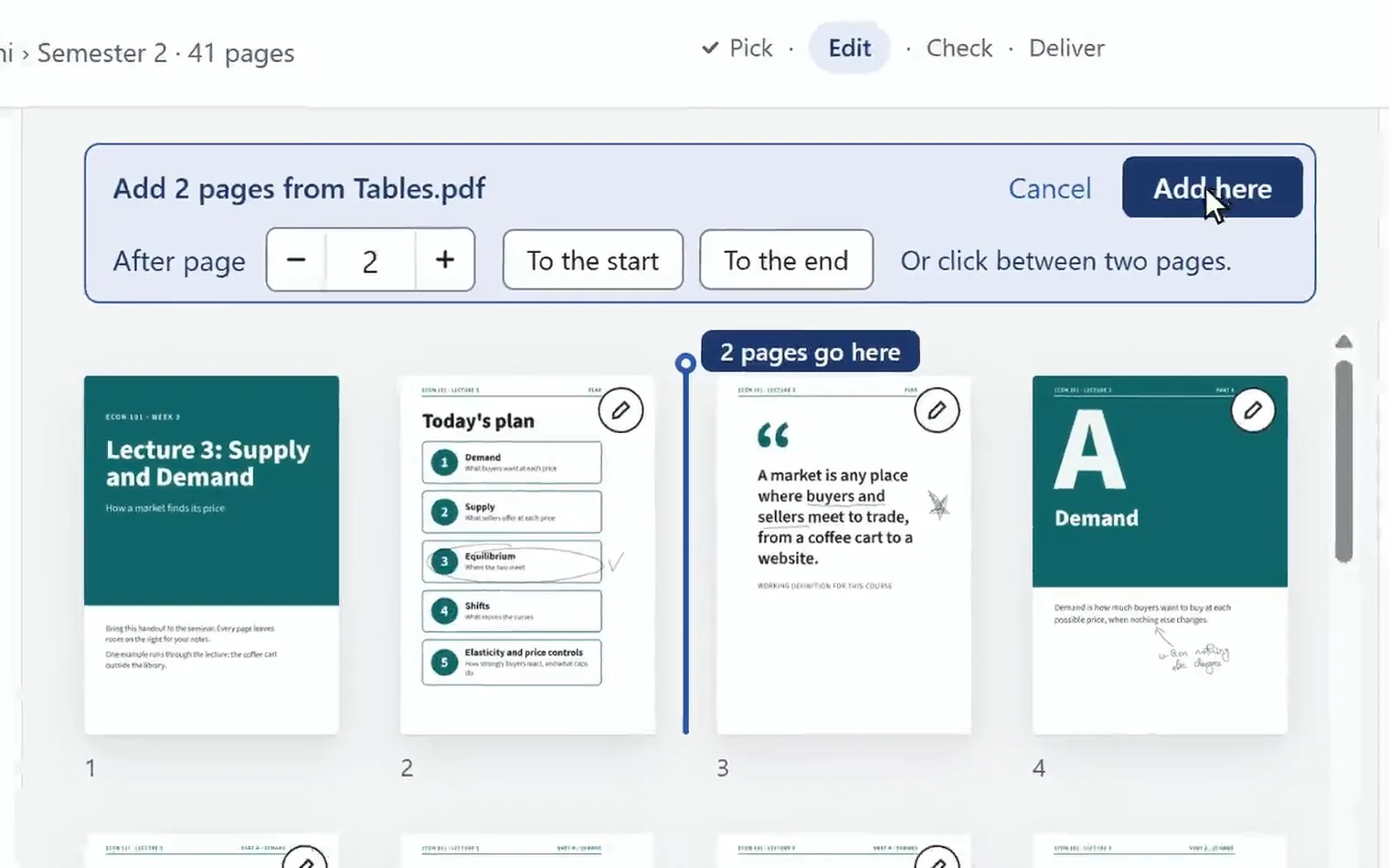
What happens to your pages, when you add 1 page after page 9:
| Pages | In your copy |
|---|---|
| Pages 1 to 9 | Stay where they are, with their notes. |
| The new page | Becomes page 10, tagged “Added”, with no notes yet. You write on it on the tablet like any other page. |
| Your old pages 10 and up | Move down one, each with its notes. |
To put the habit tracker after every month, add it the same way in each place. If the template is already a PDF document on your tablet, click + Pages, then Another reMarkable document, and pick it there.
Your original planner stays as it is. Inklatch makes a new copy and checks it before it’s saved. It works with the reMarkable desktop app on your computer, and never connects to the reMarkable cloud.
What to watch for
- Inklatch doesn’t install templates. It adds PDF pages to a PDF document. Nothing new appears in the tablet’s Templates menu, and Inklatch never changes anything on the tablet.
- PDFs only. Your planner has to be a PDF document, and the template has to be a PDF file. Notebooks and EPUBs aren’t listed in Inklatch. In a notebook, the tablet’s own templates are free.
- Links on the pages you add don’t come along. A “back to the index” link on an added page does nothing in your copy.
- Each new page keeps its own size. A template made for another paper size stays that size.
- Sync first. Inklatch works from the copy on your computer. Let the reMarkable desktop app finish syncing, so your newest notes come along.
- Your copy is a new document. Notes you write on the old planner later won’t be in it. When the copy arrives, Inklatch shows you how to delete the old one, or you can keep both.
Questions people ask
Can I add custom templates to a reMarkable?
Not to the Templates menu, as of November 2026. reMarkable suggests importing a PDF with your layout instead. With a Connect subscription, reMarkable Methods adds more templates and PDF workbooks.
Can I use a PDF as a template on a reMarkable?
Yes, as a document. Import it, and duplicate it before you write so you keep a clean one. It can’t be the background of a notebook page.
Can I add a template page to a PDF planner on the tablet?
Yes, if a built-in template will do: add a note page. A page from another PDF, no.
Will my notes stay on the right days?
Yes. Each page keeps its own notes. Add 1 page after page 9, and your old page 10 becomes page 11, notes and all.
Does it work with reMarkable 2 and Paper Pro planners?
Yes. Inklatch works with the copy the reMarkable desktop app keeps on your computer, so it doesn’t matter which tablet wrote the notes.